 EN
EN Passkey, TOTP or SMS: secure your exchange account
Contents
At a glance
Compare passkeys, authenticator codes and SMS for exchange accounts. Set up a stronger sign-in method and test access before losing your phone.
Before you begin
Use a passkey for your exchange account when the platform supports it, and prepare a backup before you need one. If passkeys are unavailable, an authenticator app usually offers a better starting point than SMS because its codes do not depend on control of your phone number. A phishing page can still steal a code from the app. This guide compares the options and explains how to test recovery before losing your phone.
The instructions cover personal accounts at centralized exchanges. Start with access to your registered email and a working phone or computer protected by a screen lock. You may also need a compatible hardware security key. Check your exchange's official instructions: sign-in, withdrawal approval and recovery can use different checks.
Understand what each method does
SMS sends a verification code to your phone number. An attacker who takes control of that number through a fraudulent SIM replacement or number transfer may receive those messages. A fake sign-in page can also collect an SMS code and relay it to the real exchange.
An authenticator app generates codes from a secret stored during setup. Here we mean TOTP: time-based one-time passwords. The app can generate them without a mobile connection. The setup QR code contains the information needed to create matching codes, so keep it out of chat messages and shared screenshot folders. Anyone with the same secret may generate the same codes.
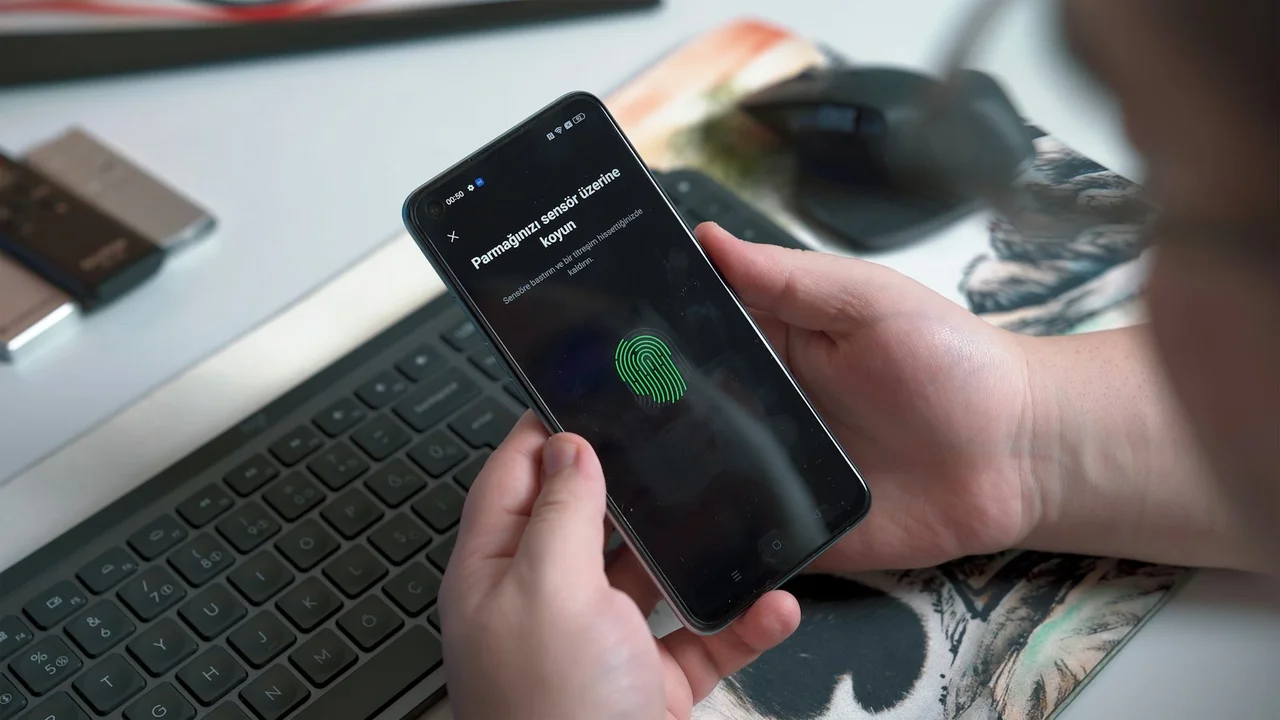
A passkey uses public-key cryptography. The exchange stores a public key; your device or credential manager controls the private key. You approve use through a device unlock method, such as a PIN or fingerprint. A correctly implemented sign-in binds that approval to the intended service, preventing a different phishing domain from obtaining a valid response for the real exchange.
A passkey may replace a password or participate in an additional verification step. That makes “passkey versus 2FA” an imperfect comparison: two-factor authentication describes the factors checked, while passkey describes a credential technology. Read how your exchange uses it.
Compare the practical risks
| Method | Fake sign-in page | Phone-number takeover | Lost phone | Prepare beforehand |
|---|---|---|---|---|
| SMS | Code can be captured and relayed | Can expose delivered codes | Depends on number recovery | Carrier and exchange recovery process |
| TOTP app | Code can be relayed before expiry | Does not itself reveal the app secret | Requires transfer, backup or exchange recovery | Tested transfer and exchange recovery codes, if offered |
| Synced passkey | Origin binding resists ordinary domain impersonation | Does not itself reveal the passkey; cloud recovery needs separate review | May remain available on another trusted device | Credential-manager protection and recovery |
| Device-bound passkey on a FIDO2 key | Origin binding resists ordinary domain impersonation | Does not itself reveal the key | A separate key survives loss of the phone | Compatible devices and another registered backup |
What phishing resistance covers
The hardware-key row refers to FIDO2/WebAuthn, not every token that displays digits. NIST explains that manually entered one-time codes are not phishing-resistant because an impostor can relay them to the genuine service. Phishing resistance describes the authentication protocol, not protection from every form of account theft.
Check recovery before changing sign-in
Open the exchange through its official app or your saved bookmark. List the available sign-in methods and check how recovery works. Find out whether the exchange accepts another registered key, provides recovery codes or requires identity verification when the main method is unavailable.
Read any waiting periods and transaction restrictions in the exchange's own documentation. Someone else's recovery experience does not establish the deadline for your account. Keep a working method until you have tested its replacement.
Secure the registered email account as well. Review its password, sign-in protection and recovery details. An attacker who controls that mailbox may be able to start a separate exchange recovery process even when your preferred sign-in method is strong.
Set up and test a passkey
- Update your operating system and browser. Enable a screen lock and use a personal device you control.
- Open the exchange's security settings and find its passkey option. Match the steps to the platform's current help page.
- Choose where to store the credential. Your system may offer a credential manager, phone or compatible hardware key. Check whether the selected option syncs across devices.
- Complete the system approval. Confirm that the exchange lists the new method and give it a recognizable name if possible.
- Keep your current working session open. Test a fresh sign-in from another browser profile or a trusted device. Avoid public computers for this check.
- Register and test a backup. Only then reconsider older methods, including SMS, according to the exchange's rules.
Coinbase's published examples include a passkey with a security-key backup, or two security keys. Other exchanges may offer different combinations. Availability can depend on the account and supported devices.
For a synced passkey, review the credential manager's recovery safeguards. Apple describes end-to-end encryption for iCloud Keychain and additional controls for access to the keychain. Do not assume that every provider follows the same design. A device-bound FIDO2 credential generally stays on its physical key, so register another suitable backup before relying on it.
Use an authenticator app when passkeys are unavailable
Install the chosen app from its official store listing. Enable authenticator codes in the exchange settings, scan the setup QR code and enter the current code to complete enrollment. Check that the exchange now lists the method as active.
Review the app's storage settings. Some configurations keep secrets on the device; others sync them through an account. Google Authenticator supports both approaches. If you use it without a Google Account, transferring codes requires a separate step. Test the transfer while the old phone still works.
If a code fails, check automatic device time and confirm that you selected the correct exchange entry. Do not delete the entry as a troubleshooting shortcut. You may lose the working credential if you no longer have its setup secret.
Save exchange-issued recovery codes if available. Keep them accessible without the phone and without signing into the exchange itself. A backup inside the account it is meant to recover creates a dependency you may discover only after losing access.
Rehearse a lost-phone scenario
Imagine leaving your phone in a taxi and signing in from your home computer. Does that computer already have access to the synced passkey? Which approval will the credential manager require? If the credential exists only on the missing phone, what registered backup can you use?
Test the backup sign-in while your primary method remains available. Confirm that you can open security settings. Do not initiate an account reset just to run a test. Store the backup separately from the main device; a spare key in the same phone case can disappear with it.
After a real loss, follow the exchange and device provider's recovery instructions. Once you regain control, remove the lost credential, review sessions and register a replacement. Google documents removal of a lost-device passkey from a Google Account; that procedure does not replace your exchange's recovery instructions.
Review withdrawals and connected access
Check what the exchange requires to add a withdrawal address, change a password or disable authentication. If an address allowlist is available, read the delay and amendment rules before depending on it.
Review API keys and connected applications. Remove access you no longer use and inspect the remaining permissions. Reading a balance and withdrawing funds create different risks. Grant only permissions the service needs for your intended task.
If someone claiming to be support requests codes, setup secrets or remote access, end the conversation and verify the request through the official app. Our fake exchange support guide covers that situation.
If you already disclosed a code
From a trusted device, use the exchange's account or transfer lock if available. Coinbase, for example, documents a Security Lock that signs devices out and restricts operations until the account is unlocked. Your exchange may provide a different process.
Contact official support and preserve the time, phishing-page address and suspicious transaction details. Check email access and changes to sign-in methods. If you allowed remote access, use another trusted device for recovery. Adding a passkey afterward does not reverse transactions an attacker already completed.
Frequently asked questions
Do I need to buy a security key?
Check compatibility and backup access first. A synced passkey can also support phishing-resistant sign-in. A hardware key is an option when its storage model and device support fit your needs.
Can SMS remain a backup?
Review whether SMS can bypass the stronger method. Replace it only after testing another workable recovery path and checking the exchange's requirements.
Evidence & sources
Source record: · Checked:
Record limits · Checked 2026-10-31 against official technical and provider documentation. Procedures differ between exchanges; recheck recovery rules before changing access.
- Source reported
You can still generate codes without an internet connection or mobile service.
Supporting excerpt: Get verification codes with Google Authenticator - Android phone & tablet - Google Account Help
You can still generate codes without an internet connection or mobile service.
Get verification codes with Google Authenticator - Android phone & tablet - Google Account Help ↗ - Source reported
FIDO standards use standard public key cryptography techniques to provide phishing-resistant authentication.
Supporting excerpt: FIDO Passkeys: Passwordless Authentication
FIDO standards use standard public key cryptography techniques to provide phishing-resistant authentication.
FIDO Passkeys: Passwordless Authentication ↗ - Source reported
OTP authentication is not phishing-resistant.
- Source reported
Passkey + security key: Combines Passkey convenience with a security key backup if you lose your phone.
Supporting excerpt: Set up your 2-step verification
Passkey + security key: Combines Passkey convenience with a security key backup if you lose your phone.
Set up your 2-step verification ↗ - Source reported
Passkeys sync across a user's devices using iCloud Keychain.
Supporting excerpt: About the security of passkeys - Apple Support
Passkeys sync across a user's devices using iCloud Keychain.
About the security of passkeys - Apple Support ↗ - Source reported
Remove the passkey associated with the lost or stolen device.
Supporting excerpt: Fix common issues with 2-Step Verification - Google Account Help
Remove the passkey associated with the lost or stolen device.
Fix common issues with 2-Step Verification - Google Account Help ↗ - Source reported
Locking your account will sign you out from all devices.
Supporting excerpt: Lock or unlock your compromised account
Locking your account will sign you out from all devices.
Lock or unlock your compromised account ↗


Related reading

Fake exchange support: how to verify a request
Verify an exchange support request and protect your account if you shared a code, allowed remote access or sent cryptocurrency.
Read article : Fake exchange support: how to verify a request
Chainalysis reports access to customer contact data
Chainalysis disclosed access to user contact and role data on 30 October. What the company says was affected, what remains unknown and how to verify follow-up messages.
Read article : Chainalysis reports access to customer contact data
Binance hack: frozen funds and actual returns
Investigators trace billions stolen from Binance. What the freeze figures show, what Arbitrum secured and why actual repayments remain unconfirmed.
Read article : Binance hack: frozen funds and actual returns