 EN
Cryptomator: review, download and setup
Cryptomator: encrypt files before syncing to the cloud, create a vault, save a recovery key and back up your files.
What is Cryptomator used for?
Cryptomator creates encrypted storage in the selected directory. After unlocking, the files are available through a separate volume, and an encrypted view remains in the source folder. This is useful when storing documents in the cloud without giving the provider open content.
The program does not become a cloud disk and does not perform synchronization instead of the provider's client. It is responsible for encryption; folder transfer, conflicts and availability also depend on storage. Check both layers separately.
| Item | Details |
|---|---|
| Platforms | Windows, macOS, Linux; individual mobile applications |
| Use case | File encryption |
| Download source | Use the project’s official page and choose the build for your operating system. |
| Version and terms | Current builds and conditions of use are given from the developer. The review does not record the unchanged version number. |
Cryptomator and open volume
Distinguish the encrypted folder and open volume. Copying a document next to service files is not equal to adding via an unlocked disk. Check the process on the test document before the transfer of work data.
The password and key of the recovery relate to access to the storage. Save the recovery mechanism separately and read the procedure. Password change and recovery - different operations. The cloud provider does not become the owner of the key just because it stores the folder.
Download Cryptomator from the official website
Select the supported platform on the project page. The link leads to the selection of the distribution, and does not start the installation automatically.
Use the official download address. Check the signature or checksum if the project publishes one. Keep secret configuration files private when contacting support.
Getting started with Cryptomator
- Install the client from the project site and select the directory for the storage.
- Create a unique password, save the provided recovery key.
- Add the test file through the unlocked volume.
- Lock the storage and check the encrypted view in the source folder.
- Wait for the synchronization, check the second device and organize a separate copy.
Cryptomator interface and illustrations
Interface screenshots
The origin of the images is indicated in the sources below. The interface of the installed version may differ.
CryptomatorUnlock Cryptomator Storage in Windows
1 of 1. Cryptomator: Unlock Cryptomator Storage in Windows
Limitations and data protection in Cryptomator
In an unlocked vault, applications can access files according to operating system permissions. Storage encryption cannot prevent malware from reading accessible files or protect unencrypted copies already created.
Parallel work from different devices can cause conflicts. Do not edit the internal structure manually. Before repairing or fixing the problem, save a copy and read the relevant section of the documentation.
Alternatives for related tasks
Cryptomator is designed for file storage and cloud synchronization. VeraCrypt has a different organization - containers and volumes. Choose how files are moved and a copy is restored, not just the availability of a password.
Questions and answers
Cryptomator syncs files?
This is usually done by a cloud-based customer. Cryptomator creates a layer of encryption.
Will the cloud restore the password?
Do not rely on decryption by the provider. Save the recovery key and study the procedure.
Can I change the internal storage files?
Work through open volume. Before fixing the problems, save a separate copy; do not correct the structure manually.
Other tools for similar tasks
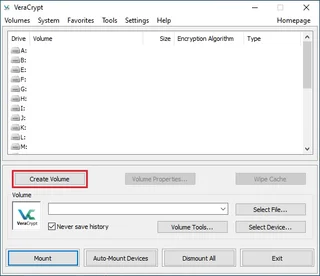
VeraCrypt
VeraCrypt: create a file container, mount and dismount it, plan backups and understand what volume encryption protects.
Review and setup →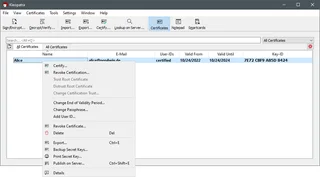
Gpg4win
Gpg4win: encrypt and sign files on Windows with Kleopatra, exchange public keys, verify fingerprints and back up the private key.
Review and setup →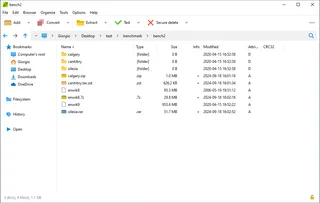
PeaZip
PeaZip: choose a format for encrypted archives, protect file names, download the official build and test extraction on the recipient’s device.
Review and setup →Related reading

Passkey, TOTP or SMS: protection of the exchange account
Selection of the method of entry and preparation of access recovery.
Read article →
Fake support for the exchange: how to check the request
Checking the access to the installation of programs and the transfer of access.
Read article →About the author

Crypto, fintech and Web3 expert with a background in marketing. Covers digital-asset projects, industry risks and fraud prevention.
Professional websiteDocumentation and images
Official sources, image credits and review methods
- Download Cryptomator
- Documentation Cryptomator
- Unlock Cryptomator Storage in Windows: illustration source — Press materials Cryptomator / Skymatic.
The review was prepared on the project documentation. The installation and independent testing of the distribution within this material was not carried out. The rights to the interface and the names are reserved for the respective rights holders.