 EN
Dangerzone: converting document attachments into rebuilt PDFs
Dangerzone review: local document conversion, OCR, supported platforms, first-run setup and what changes when a document is rebuilt from page images.
What is Dangerzone used for?
Dangerzone converts PDFs, office documents and supported images into a new PDF built from pictures of their pages. It runs the conversion in an isolated environment and passes page pixels to the rebuilding stage. Scripts, embedded files and the original document's interactive logic are not carried into that rebuilt structure.
It is a reading workflow for attachments you need to inspect without opening their original structure in an ordinary office application. Freedom of the Press Foundation maintains the free open-source project.
| Item | Details |
|---|---|
| Platforms | Windows, macOS, Linux |
| Task | Secure file transfer |
| Download source | Use the project’s official page and choose the build for your operating system. |
| Version and terms | Checked 15 November 2026: 0.11.1; free software under AGPL-3.0. Sandbox updates are maintained separately. |
Dangerzone interface and illustrations
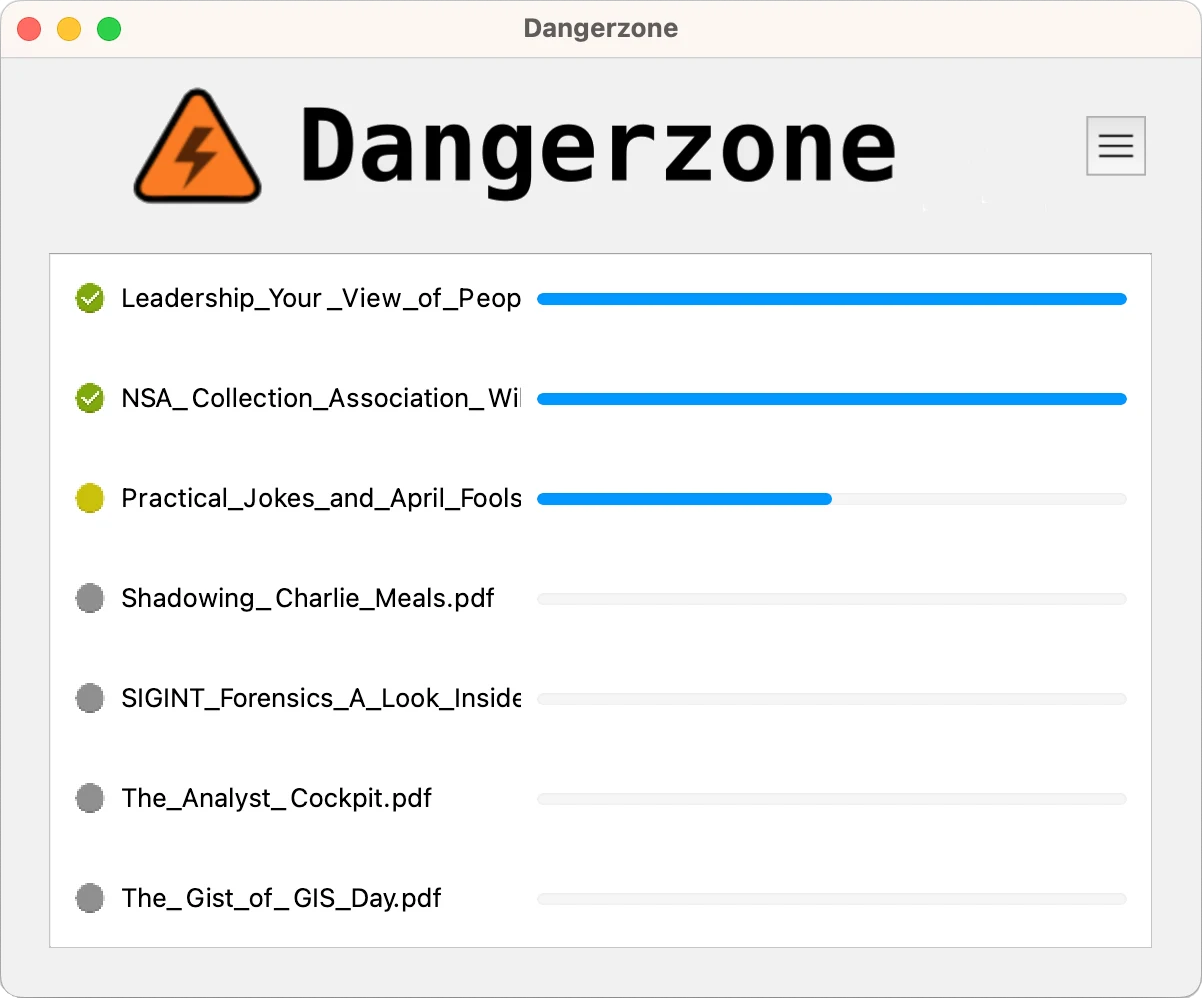
The official repository screenshots show conversion options and the progress of selected documents. Choose where the output will be saved and whether OCR should add searchable text. The illustrations are from the project, not a test with a malicious file.
Interface screenshots
Image sources are listed below. Other versions may have a different interface.
DangerzoneDocument conversion settings
1 of 1. Dangerzone: Document conversion settings
Download Dangerzone from the official website
The checked download page lists Dangerzone 0.11.1 for Windows, macOS Intel and Apple Silicon, and Linux installation routes including Debian/Ubuntu and Fedora. Qubes OS integration is marked beta. Use the platform-specific instructions rather than a package from a download mirror.
Windows and macOS packages bundle the required Podman environment. On Linux, the slim package downloads the sandbox image on first use; the full package includes it. Allow for that initial download before planning offline work.
Getting started with Dangerzone
- Install the current official package for your system.
- Finish the initial sandbox setup and check for applicable updates before disconnecting from the internet.
- Select a disposable supported document for the first conversion.
- Choose the output location. Enable OCR and the correct language if you need searchable text.
- Run the conversion and open the resulting PDF, rather than the original attachment.
- Check page count, layout and any text you plan to quote. Keep the original separately if your records require it.
Reading attachments in journalism, administration and research
A reporter can inspect a source document, an administrator can review an unexpected attachment, and a researcher can extract readable pages for analysis. These are examples of the same conversion mechanism: keep the original separately when provenance matters, and work with the rebuilt copy for reading.
From document structure to page images
Inside the sandbox, the source is rendered into pages and reduced to pixel data. A new PDF is then assembled from those images. OCR can add a text layer, but the result is no longer an editable copy of the original office document.
| Element | Result | Practical consequence |
|---|---|---|
| Visible pages | Rebuilt as images | Layout remains readable |
| Scripts and embedded files | Not transferred as original objects | Interactive features are lost |
| Text | Optional OCR layer | Search and copying need OCR |
| Visible names or watermarks | Can remain in page pixels | Review before sharing |
OCR and the quality of the result
Optical character recognition turns the page image into machine-readable text. It helps with search and copying, but a poor scan, unusual font or wrong language selection can introduce errors. Check quotations, names and numbers against the rendered page.
Offline work and keeping the sandbox current
Conversion runs locally and the sandbox has no network access. The software and sandbox still need a maintenance path: prepare updates while connected, then use the documented offline workflow where required. This is useful for files that should remain on your own workstation.
Before handing a converted document to someone else
- Inspect visible account names, signatures and watermarks.
- Check that all required pages converted.
- Verify OCR text that will be quoted or searched.
- Keep the original's evidentiary role separate from the reading copy.
Limitations and data protection in Dangerzone
Dangerzone transforms a document; it does not classify the original as malicious or benign. Visible sensitive information can survive because it is part of the page image.
Editable forms, attachments and interactive features are lost. For editing or evidentiary preservation, keep an appropriate separate workflow for the original file.
Alternatives for related tasks
ExifTool inspects metadata but does not rebuild document pages. An ordinary PDF viewer displays a document in its existing structure. Dangerzone is useful when the specific goal is a reconstructed reading copy; it can be followed by a separate visual redaction review before publication.
Questions and answers
Are files uploaded for conversion?
The documented conversion runs locally in a sandbox. Initial setup and updates are separate network operations.
Can I search the output?
Enable OCR for a searchable text layer and choose the document's language.
Does it remove a name printed on the page?
No. Visible text is part of the page image and needs separate review or redaction.
Other tools for similar tasks
ExifTool
ExifTool review: read EXIF, IPTC and XMP, inspect GPS fields, edit supported tags and understand why PDF metadata changes remain reversible.
Review and setup →
OnionShare
OnionShare: share files through an onion service, manage the address and access key, and stop sharing when finished.
Review and setup →
Cryptomator
Cryptomator: encrypt files before syncing to the cloud, create a vault, save a recovery key and back up your files.
Review and setup →Related reading

Passkey, TOTP or SMS: protection of the exchange account
Selection of the method of entry and preparation of access recovery.
Read article →
Fake support for the exchange: how to check the request
Checking the access to the installation of programs and the transfer of access.
Read article →About the author

Crypto, fintech and Web3 expert with a background in marketing. Covers digital-asset projects, industry risks and fraud prevention.
Professional websiteDocumentation and images
Official sources, image credits and review methods
- Download Dangerzone
- Documentation Dangerzone
- Official documentation · docs.dangerzone.rocks / faq
- Official documentation · docs.dangerzone.rocks / supported-platforms
- Official documentation · github.com / dangerzone
The review was prepared on the project documentation. The installation and independent testing of the distribution within this material was not carried out. The rights to the interface and the names are reserved for the respective rights holders.