 EN
CryptSync: review, download and setup
Sync an unencrypted folder with an encrypted copy in Windows, choose a sync direction and test recovery.
What is CryptSync used for?
CryptSync syncs a couple of folders: one contains working files, in another, encrypted copies of them. The second folder can be placed in the cloud client directory. CryptSync is not a cloud storage.
The official documentation describes synchronization in both directions: changes in an encrypted copy can get to the working folder after decryption. Therefore, the direction and rules of the pair should be checked before the use of important documents.
| Item | Details |
|---|---|
| Platforms | Windows 10 22H2 or newer required |
| Use case | File encryption |
| Download source | Use the project’s official page and choose the build for your operating system. |
| Version and terms | Current builds and conditions of use are given from the developer. The review does not record the unchanged version number. |
Set up an encrypted folder for your cloud client
Create a test pair in empty catalogs. Make sure that the cloud client sees only the encrypted side, and the open originals remain in the selected local location. To encrypt, use a password other than the cloud account password.
Check the creation, modification and deletion of the test file. The name encryption is configured separately; it affects the readability of names and the length of the paths. Explore the restrictions before transferring deep-nested catalogs.
Download CryptSync from the official website
Select the supported platform on the project page. The link leads to the selection of the distribution, and does not start the installation automatically.
Use the official download address. Check the signature or checksum if the project publishes one. Keep secret configuration files private when contacting support.
Getting started with CryptSync
- Check the requirements of Windows on the official page.
- Create separate working and encrypted folders.
- Add a couple and set up your password, names and direction.
- Check the changes on the test documents.
- Decrypt the copy and set up an independent backup.
CryptSync interface and illustrations
Interface screenshots
The origin of the images is indicated in the sources below. The interface of the installed version may differ.
CryptSyncCryptSync: list of pairs of synchronized folders
1 of 1. CryptSync: CryptSync: list of pairs of synchronized folders
Limitations and data protection in CryptSync
The open work folder does not become encrypted from the CryptSync installation. Protecting the computer and its disk remains a separate task.
Synchronization can spread unwanted changes. To recover past data, you need backups or a suitable version history.
Alternatives for related tasks
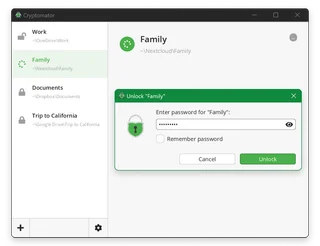
Cryptomator provides access to encrypted storage via a virtual disk. CryptSync supports a separate open folder and an encrypted copy; this is another behavior and other storage model.
Questions and answers
CryptSync loads files on your own to the cloud?
Oh, no. The encrypted folder syncs a separate cloud client.
Can I encrypt the file names?
Yes, this is a separate setup. Check the length limitations and compatibility of the selected mode.
After setting up, the open files disappear?
Oh, no. The work side of the pair contains unencrypted files that you continue to work with.
Other tools for similar tasks
Cryptomator
Cryptomator: encrypt files before syncing to the cloud, create a vault, save a recovery key and back up your files.
Review and setup →
7-Zip
7-Zip: official downloads, Windows and command-line editions, 7z archives with AES-256, file name encryption and extraction checks.
Review and setup →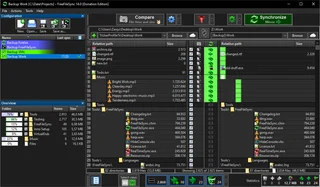
FreeFileSync
Compare folders and preview changes before running two-way sync or mirroring in FreeFileSync.
Review and setup →Related reading
Passkey, TOTP or SMS: protection of the exchange account
Selection of the method of entry and preparation of access recovery.
Read article →
Fake support for the exchange: how to check the request
Checking the access to the installation of programs and the transfer of access.
Read article →About the author

Crypto, fintech and Web3 expert with a background in marketing. Covers digital-asset projects, industry risks and fraud prevention.
Professional websiteDocumentation and images
Official sources, image credits and review methods
- Download CryptSync
- Documentation CryptSync
- CryptSync: list of pairs of synchronized folders: illustration source — Official materials of tools.stefankueng.com; editorial illustration of the interface, rights of the rightholder.
The review was prepared on the project documentation. The installation and independent testing of the distribution within this material was not carried out. The rights to the interface and the names are reserved for the respective rights holders.