 EN
7-Zip: review, download and setup
7-Zip: official downloads, Windows and command-line editions, 7z archives with AES-256, file name encryption and extraction checks.
What is 7-Zip used for?
7-Zip creates and unpacks archives; the 7z format also supports AES-256 encryption. This is a convenient option for transferring a set of documents with one file or storing a separate protected copy. The archiver does not turn an open working folder into a permanently encrypted storage.
On the official download page, choose a package for the system and architecture. The home of the window file manager refers to Windows; the availability of the package for macOS or Linux does not mean that the same graphical interface is available. The screenshot below shows the Windows interface and does not promises an exact match with the current build.
| Item | Details |
|---|---|
| Platforms | Windows, macOS, Linux; graphic file manager - Windows, macOS and Linux console packages available |
| Use case | File encryption |
| Download source | Use the project’s official page and choose the build for your operating system. |
| Version and terms | Current builds and conditions of use are given from the developer. The review does not record the unchanged version number. |
Encryption of 7z archive in 7-Zip
Create a separate test archive in 7z format, set a long unique password and enable filename encryption if the document names are also sensitive. Without this configuration, the contents and the list of names may have varying degrees of protection. Before sending, close the archive and try to reopen it with and without a password.
The recipient must be able to unpack the selected format and encryption method. Transfer the password with a separate trusted channel, not in the same letter next to the attachment. For an important exchange, first check a small test file on the addressee's device: this will reveal incompatibility before the entire set is transferred.
Download 7-Zip from the official website
Select the supported platform on the project page. The link leads to the selection of the distribution, and does not start the installation automatically.
Use the official download address. Check the signature or checksum if the project publishes one. Keep secret configuration files private when contacting support.
Getting started with 7-Zip
- Download 7-Zip from the official website and check the package platform.
- Select test documents and create an archive of 7z format.
- Set your password and enable filename encryption if necessary.
- Check the opening of the archive without a password and a successful unpacking with the correct password.
- Transfer the test to the addressee and save the password and backup according to your recovery plan.
7-Zip interface and illustrations
Interface screenshots
The origin of the images is indicated in the sources below. The interface of the installed version may differ.
7-Zip7-Zip: File manager in Windows
1 of 1. 7-Zip: 7-Zip: File manager in Windows
Limitations and data protection in 7-Zip
Creating an encrypted archive does not delete the original documents, temporary copies and previously sent attachments. If the task is to protect the disk or cloud work folder, you need another way to organize storage. Find out where the open text is first.
A password-protected ZIP is not necessarily equivalent to a 7z archive encrypted with AES-256. Both the format and the encryption method matter. There is no routine password reset that preserves access to the contents. Check your backups and keep the only readable copy intact.
Alternatives for related tasks
PeaZip offers a different graphical interface for archives. Cryptomator or supported via SiriKali engine are suitable for continuous operation with an encrypted folder. The archive is convenient as a separate package, but is inconvenient for the continuous editing of a large file tree.
Questions and answers
Is 7-Zip free?
The project is distributed as free software; the terms of the components and licenses are published on the official website.
Does the password hide the file names?
For the 7z archive, enable filename encryption and check the result after closing the archive.
After archiving, the source folder is protected?
Oh, no. The source files remain in the same place if you have not separately changed the way you store them.
Other tools for similar tasks
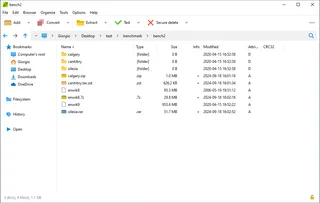
PeaZip
PeaZip: choose a format for encrypted archives, protect file names, download the official build and test extraction on the recipient’s device.
Review and setup →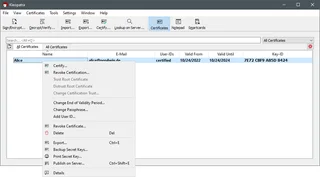
Gpg4win
Gpg4win: encrypt and sign files on Windows with Kleopatra, exchange public keys, verify fingerprints and back up the private key.
Review and setup →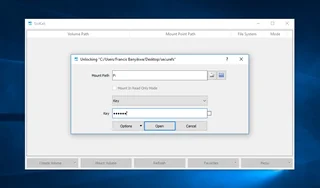
SiriKali
SiriKali: official builds, a graphical interface for folder encryption, backend selection, mount points and backups.
Review and setup →Related reading

Passkey, TOTP or SMS: protection of the exchange account
Selection of the method of entry and preparation of access recovery.
Read article →
Fake support for the exchange: how to check the request
Checking the access to the installation of programs and the transfer of access.
Read article →About the author

Crypto, fintech and Web3 expert with a background in marketing. Covers digital-asset projects, industry risks and fraud prevention.
Professional websiteDocumentation and images
Official sources, image credits and review methods
- Download 7-Zip
- Documentation 7-Zip
- 7-Zip: official project and source code
- Screenshot 7-Zip: authorship and terms of use
- GNU LGPL 2.1
- 7-Zip: File manager in Windows: illustration source — Igor Pavlov / 7-Zip (GNU LGPL); screenshot update Enderman0125 / Wikimedia Commons. The image of the 7-Zip interface; source code: www.7-zip.org..

The review was prepared on the project documentation. The installation and independent testing of the distribution within this material was not carried out. The rights to the interface and the names are reserved for the respective rights holders.