 EN
Wireshark: review, download and setup
Wireshark: analyze your network traffic, choose an interface and filters, read captures and handle PCAP files safely.
What is Wireshark used for?
Wireshark shows the packets and analyzes the network protocols. It is used to diagnose connections, study application exchange, and analyze the stored grip. Work only with traffic that is entitled to collect and explore.
The program does not provide an automatic conclusion about the hack. Repeat the package, error or unusual address require context. Make a question in advance: is the DNS request sent, is the TCP connection installed, at what stage the exchange stops?
| Item | Details |
|---|---|
| Platforms | Windows, macOS, Linux and other supported systems |
| Use case | Network diagnostics |
| Download source | Use the project’s official page and choose the build for your operating system. |
| Version and terms | Current builds and conditions of use are given from the developer. The review does not record the unchanged version number. |
Capture Wireshark: interface, time and filters
Wi-Fi, Ethernet, virtual VPN adapter and loopback show different parts of the exchange. The absence of the desired package does not prove anything if the observation was not conducted on the interface. Write down the point and time of observation.
The display filter helps to disassemble the collected data, but does not delete other packages from the file. The capture filter restricts the collection in advance and uses other syntax. A short-playable test is more useful than a multi-hour file with extra sessions.
Download Wireshark from the official website
Select the supported platform on the project page. The link leads to the selection of the distribution, and does not start the installation automatically.
Use the official download address. Check the signature or checksum if the project publishes one. Keep secret configuration files private when contacting support.
Getting started with Wireshark
- Download the program from the official website and read the requirements of capture for the OS.
- Select the allowed interface and record the start time of the test.
- Run a short grip, reproduce one problem and stop the collection.
- Filter the desired node or protocol and check the sequence of events.
- To transfer, prepare a minimum snippet and check the addresses, names and contents inside the file.
Wireshark interface and illustrations
Interface screenshots
The origin of the images is indicated in the sources below. The interface of the installed version may differ.
WiresharkList of Wireshark packages and panel
1 of 1. Wireshark: List of Wireshark packages and panel
Limitations and data protection in Wireshark
The capture may include internal addresses, host names, tokens and unencrypted exchange contents. Publication of PCAP on the forum - data transfer. Even encrypted traffic reveals some of the metadata.
Wireshark does not automatically decrypt TLS. Session keys from specific applications can help an investigation, but they are additional secrets. Collect them only when necessary and keep them separate from any captures you distribute.
Alternatives for related tasks
Wireshark helps to understand the exchange, but does not create a VPN and does not fix the server. First check the simple symptoms and logs of the application. Constant monitoring of the service requires a separate process, not an endless capture on a desktop.
Questions and answers
Will Wireshark find a hack?
Oh, no. The data requires analysis taking into account time, nodes and other sources.
Does the display filter remove secrets from PCAP?
Oh, no. It changes the visible list, but not the original set. Check the saved file before transfer.
Why not see the traffic of the application?
Check the interface, use of the tunnel and the time of the capture. Then play the event.
Other tools for similar tasks
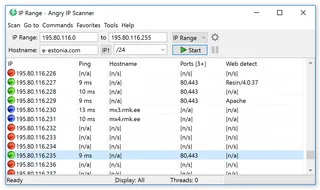
Angry IP Scanner
Angry IP Scanner: inventory an authorized local network, select address ranges, interpret results and understand reachability checks.
Review and setup →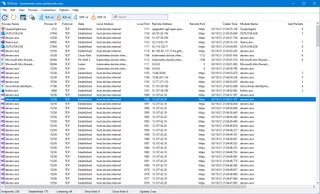
Microsoft Sysinternals TCPView
Microsoft Sysinternals TCPView: official download and a guide to interpreting Windows processes, TCP and UDP addresses, and connection states.
Review and setup →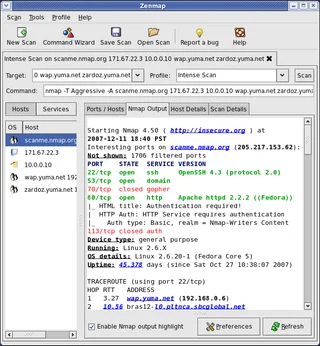
Zenmap
Zenmap: the official graphical interface for Nmap, scan profiles, result interpretation and checks within authorized network ranges.
Review and setup →Related reading

Passkey, TOTP or SMS: protection of the exchange account
Selection of the method of entry and preparation of access recovery.
Read article →
Fake support for the exchange: how to check the request
Checking the access to the installation of programs and the transfer of access.
Read article →About the author

Crypto, fintech and Web3 expert with a background in marketing. Covers digital-asset projects, industry risks and fraud prevention.
Professional websiteDocumentation and images
Official sources, image credits and review methods
- Download Wireshark
- Documentation Wireshark
- List of Wireshark packages and panel: illustration source — Screenshot of the official documentation or site of the project; editorial illustration of the interface, rights of the rightholder.
The review was prepared on the project documentation. The installation and independent testing of the distribution within this material was not carried out. The rights to the interface and the names are reserved for the respective rights holders.