 EN
Microsoft Sysinternals TCPView: review, download and setup
Microsoft Sysinternals TCPView: official download and a guide to interpreting Windows processes, TCP and UDP addresses, and connection states.
What is Microsoft Sysinternals TCPView used for?
Microsoft Sysinternals TCPView shows the network endpoints of TCP and UDP on the Windows computer and links them to processes. The table shows local and remote addresses, and for TCP - the state of the connection. The program is useful when you need to find out which application supports the connection or listens to the network port on a particular computer.
Start with the playable: open one program, follow a query and see which lines appear. One application can create multiple connections, and the browser can access different servers. The number of lines is not a sign of infection. Write down the process name, the time and the address you want to check.
| Item | Details |
|---|---|
| Platforms | Windows |
| Use case | Network diagnostics |
| Download source | Use the project’s official page and choose the build for your operating system. |
| Version and terms | Current builds and conditions of use are given from the developer. The review does not record the unchanged version number. |
TCPView: process, address and connection status
Allowing addresses to names helps to read the table, but the name itself does not prove the ownership of the connection of the desired company. In the official interface, the name resolution can be switched. When diagnosed, compare the numeric address and name, and then match them with the application action.
TCPView updates the list and highlights color changes: new, changed and disappearing endpoints. This helps to observe the sequence of events. Follow the selected process, not the overall change of colors. The line that disappeared between the updates could describe a short request that the app completed routinely.
Download Microsoft Sysinternals TCPView from the official website
Select the supported platform on the project page. The link leads to the selection of the distribution, and does not start the installation automatically.
Use the official download address. Check the signature or checksum if the project publishes one. Keep secret configuration files private when contacting support.
Getting started with Microsoft Sysinternals TCPView
- Open the official Microsoft Sysinternals TCPView page and select the Microsoft download offered.
- Unpack the package in a separate folder and read the terms of use.
- Run TCPView, find the famous application and fix the original state.
- Repeat one network action and match the lines that have appeared with the process.
- If necessary, switch the name resolution and write down the addresses and state of the connection.
- Before the publication of diagnostic data, delete unnecessary local addresses, names and information about work services.
Microsoft Sysinternals TCPView interface and illustrations
Interface screenshots
The origin of the images is indicated in the sources below. The interface of the installed version may differ.
Microsoft Sysinternals TCPViewMicrosoft Sysinternals TCPView: processes and network connections
1 of 1. Microsoft Sysinternals TCPView: Microsoft Sysinternals TCPView: processes and network connections
Limitations and data protection in Microsoft Sysinternals TCPView
TCPView does not display packet contents or decrypt HTTPS. Use a suitable protocol analyzer and obtain the necessary access before inspecting traffic contents. A process name alone does not verify an executable’s signature or origin.
The program has the operation of closing the installed TCP connection. Do not use it as the first step: you can cut off the transfer, a remote session or the application. First, keep the observation you need and find out the purpose of the connection. Closing the connection does not remove the program and does not eliminate the possible cause of its network activity.
Alternatives for related tasks
Angry IP Scanner helps to investigate the responding devices in the allowed subnet. Wireshark works with the capture and parsing of traffic. TCPView connects endpoints with processes on Windows and is suitable for the first observation of a specific application. Combine the results if the issue requires several levels of diagnosis.
Questions and answers
Many browser connections in TCPView means hacking?
Oh, no. The browser opens several connections for different components of pages. Compare the process, action, address, and time; the number of lines in itself proves nothing.
TCPView shows what exactly is transmitted over HTTPS?
Oh, no. The endpoint and state table does not replace packet capture and does not decrypt the HTTPS content.
Can you close a suspicious connection without consequences?
The closure may interrupt the application or data transfer. First, find out the purpose of the process and save the observation; do not consider closing the elimination of the cause.
Other tools for similar tasks
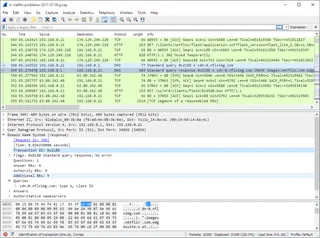
Wireshark
Wireshark: analyze your network traffic, choose an interface and filters, read captures and handle PCAP files safely.
Review and setup →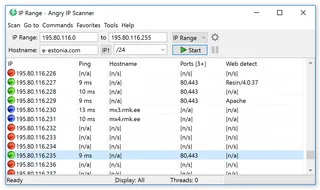
Angry IP Scanner
Angry IP Scanner: inventory an authorized local network, select address ranges, interpret results and understand reachability checks.
Review and setup →
PuTTY
PuTTY: official SSH client downloads, host key checks, saved sessions and how to choose between PuTTY and OpenSSH.
Review and setup →Related reading

Passkey, TOTP or SMS: protection of the exchange account
Selection of the method of entry and preparation of access recovery.
Read article →
Fake support for the exchange: how to check the request
Checking the access to the installation of programs and the transfer of access.
Read article →About the author

Crypto, fintech and Web3 expert with a background in marketing. Covers digital-asset projects, industry risks and fraud prevention.
Professional websiteDocumentation and images
Official sources, image credits and review methods
- Download Microsoft Sysinternals TCPView
- Documentation Microsoft Sysinternals TCPView
- Microsoft screenshot rules
- Microsoft Sysinternals TCPView: processes and network connections: illustration source — Microsoft Sysinternals. Used with permission from Microsoft..
The review was prepared on the project documentation. The installation and independent testing of the distribution within this material was not carried out. The rights to the interface and the names are reserved for the respective rights holders.