 EN
Cyberduck: review, download and setup
Cyberduck: official downloads for Windows and macOS, SFTP and cloud storage access, server verification and secure transfers.
What is Cyberduck used for?
Cyberduck is a graphical client for working with deleted files. It supports server protocols and connections to cloud storage. The program will be useful for downloading site materials, obtaining a backup and managing objects in the provider's account. Windows and macOS are separately presented on the download page.
Before you create a connection, you will receive an accurate protocol, address, port and username from the server owner. For cloud storage, you may need other details and permissions. The similar entry windows do not make SFTP, FTP and cloud-based API interchangeable. In the official illustrations there are different types of connections; choose the parameters of your service.
| Item | Details |
|---|---|
| Platforms | Windows, macOS |
| Use case | Secure file transfer |
| Download source | Use the project’s official page and choose the build for your operating system. |
| Version and terms | Current builds and conditions of use are given from the developer. The review does not record the unchanged version number. |
Cyberduck: checking the SFTP server and access rights
When connecting SFTP connect, check the host key with the administrator data. The saved address in the tab helps to repeat the connection, but does not replace the check of the changed key. If the warning appears on a familiar server, find out the reason before the documents are transferred. Don't confirm the new imprint just to close the window.
The first transfer should go to the test folder with an understandable purpose. Check who sees the downloaded file, what happens when the names match and where the downloaded copy gets. In the queue of the transmissions, you can observe the course of operations. When working with the site, the erroneous overrew differs in the consequences of adding a new document to a separate catalog.
Download Cyberduck from the official website
Select the supported platform on the project page. The link leads to the selection of the distribution, and does not start the installation automatically.
Use the official download address. Check the signature or checksum if the project publishes one. Keep secret configuration files private when contacting support.
Getting started with Cyberduck
- Open the official Cyberduck page and select Windows or macOS build.
- Create a connection to the protocol that is specified by the administrator or provider.
- Enter your address and account data, at SFTP check the server key.
- Open the test remote directory and pass a small file.
- Check the queue, name and size of the result; download the copy for the control opening.
- Save the bookmark without unnecessary authority and check the rewrite script to work with important files.
Cyberduck interface and illustrations
Interface screenshots
The origin of the images is indicated in the sources below. The interface of the installed version may differ.
CyberduckThe Cyberduck Connection Opening Dialogue
1 of 2. Cyberduck: The Cyberduck Connection Opening Dialogue
Limitations and data protection in Cyberduck
Cloud data can allow more actions than is required for a single transfer. Use individual permissions for the task and withdraw unnecessary keys. Do not post a bookmark file with secrets in contacting support.
A secure connection does not determine who will be able to read the file after downloading. The availability of a link, directory rights, and storage encryption depend on the server or cloud policy. For a confidential document if necessary, prepare additional encryption before sending. The official page also distinguishes direct builds from store options and voluntary registration: check the conditions there.
Alternatives for related tasks
WinSCP is convenient for similar server tasks on Windows; Cyberduck also provides a macOS graphical client. LocalSend is designed to be transferred between neighboring devices on the local network, and OnionShare organizes another way of exchange via Tor. These applications do not require the same props and do not replace each other in each scenario.
Questions and answers
Do you need an FTP server for Cyberduck?
Need a supported server or cloud service. Choose his real protocol. SFTP and the usual FTP are different ways to connect.
Why does Cyberduck warn of a changed key?
The server key is different from the saved. This can be a consequence of maintenance or subsidization; check the new print at the administrator before the continuation.
Encrypted channel makes the uploaded file private?
Not on its own. After the download, the rights and the service storage policy are valid. Separately check the recipients, public links and the need to encrypt the document.
Other tools for similar tasks
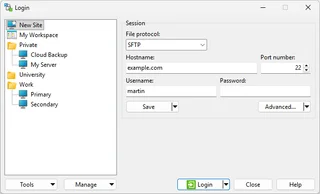
WinSCP
WinSCP: official downloads, SFTP setup, host key verification and file synchronization without unintended overwrites.
Review and setup →
LocalSend
LocalSend: official apps, local file transfers between phones and computers, recipient checks and device discovery troubleshooting.
Review and setup →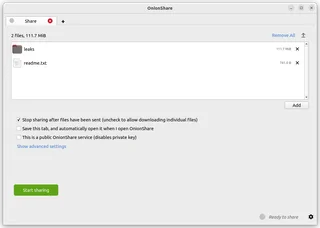
OnionShare
OnionShare: share files through an onion service, manage the address and access key, and stop sharing when finished.
Review and setup →Related reading

Passkey, TOTP or SMS: protection of the exchange account
Selection of the method of entry and preparation of access recovery.
Read article →
Fake support for the exchange: how to check the request
Checking the access to the installation of programs and the transfer of access.
Read article →About the author

Crypto, fintech and Web3 expert with a background in marketing. Covers digital-asset projects, industry risks and fraud prevention.
Professional websiteDocumentation and images
Official sources, image credits and review methods
- Download Cyberduck
- Documentation Cyberduck
- Transfer files to Cyberduck
- SFTP and key verification
- The Cyberduck Connection Opening Dialogue: illustration source — Official materials of docs.cyberduck.io; editorial illustration of the interface, rights of the rightholder.
- Transmission queue Cyberduck: illustration source — Official materials of docs.cyberduck.io; editorial illustration of the interface, rights of the rightholder.
The review was prepared on the project documentation. The installation and independent testing of the distribution within this material was not carried out. The rights to the interface and the names are reserved for the respective rights holders.