 EN
KDE Connect: review, download and setup
KDE Connect: official apps, pairing phones and computers, file transfers, permissions for plugins and platform differences.
What is KDE Connect used for?
KDE Connect connects the phone and computer to transfer files and other everyday activities. Depending on the platform, notifications, clipboards, multimedia control and additional modules are available. This is a set of interactions between trusted devices, not an open public link for any recipient.
The official page contains installation options for desktop and mobile systems. Having a client on each OS does not mean the same set of functions: restrictions on background work, resolutions and supported modules are different. Before installing, check the script for which you want to link the devices.
| Item | Details |
|---|---|
| Platforms | Windows, macOS, Linux, Android, iOS; installation capabilities and ways vary |
| Use case | Secure file transfer |
| Download source | Use the project’s official page and choose the build for your operating system. |
| Version and terms | Current builds and conditions of use are given from the developer. The review does not record the unchanged version number. |
KDE Connect: pairing devices and configuring plugin permissions
Usually, devices need to detect each other in an accessible network. Check their names and confirm the expected pairing request on the right side. If there is an unfamiliar phone on the list, do not allow it to connect for the sake of the experiment. After replacing or selling the device, remove the previous pair.
Turn on the modules on the task. Access to notifications, clipboard, remote input and execution of commands - different permissions with different consequences. For a simple transfer of the photo, you do not need to allow everything in advance. Start with an unsecret file and see where it appeared on the computer.
Download KDE Connect from the official website
Select the supported platform on the project page. The link leads to the selection of the distribution, and does not start the installation automatically.
Use the official download address. Check the signature or checksum if the project publishes one. Keep secret configuration files private when contacting support.
Getting started with KDE Connect
- Select the app on the links of the official page of KDE Connect.
- Connect your devices to the right network and open the app on both sides.
- Check the names and confirm the pairing request.
- Turn on the modules only and send a small test file.
- Check the receipt folder, the behavior in the background and delete the trusted pair.
KDE Connect interface and illustrations
Interface screenshots
The origin of the images is indicated in the sources below. The interface of the installed version may differ.
KDE ConnectKDE Connect: list of devices on your computer
1 of 2. KDE Connect: KDE Connect: list of devices on your computer
Limitations and data protection in KDE Connect
If the devices don't see each other, check the customer isolation in Wi-Fi, firewall rules, and VPN impact. Do not disable all network protection indiscriminately: first check the requirements in the official instructions and the purpose of a specific rule.
The transfer between trusted devices does not make the documents anonymous. Metadata may remain in the photos and files; notifications and a shared buffer may contain personal information. Turn off unnecessary modules and do not leave the pairing with someone else's or public computer.
Alternatives for related tasks
KDE Connect is convenient for constant communication of the phone and computer. LocalSend is focused on transferring files, Syncthing - on the synchronization of folders, OnionShare - on another way to provide access. For a single exchange, choose a minimum sufficient set of permissions.
Questions and answers
Are all Android features available on iPhone?
Oh, no. The set of modules depends on the platform, permissions and version of the application.
Can I transfer files without pairing with any device?
The usual KDE Connect script is designed to communicate trusted conjugated devices.
Need to allow notifications and input management?
Only if you need the appropriate functions. For each task, check the minimum set of permissions.
Other tools for similar tasks
LocalSend
LocalSend: official apps, local file transfers between phones and computers, recipient checks and device discovery troubleshooting.
Review and setup →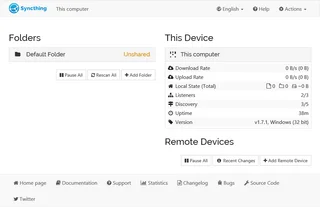
Syncthing
Syncthing: official downloads, device and folder setup, sync verification, propagation of deletions and the difference between sync and backup.
Review and setup →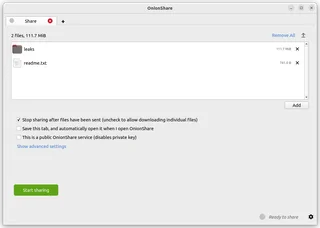
OnionShare
OnionShare: share files through an onion service, manage the address and access key, and stop sharing when finished.
Review and setup →Related reading
Passkey, TOTP or SMS: protection of the exchange account
Selection of the method of entry and preparation of access recovery.
Read article →
Fake support for the exchange: how to check the request
Checking the access to the installation of programs and the transfer of access.
Read article →About the author

Crypto, fintech and Web3 expert with a background in marketing. Covers digital-asset projects, industry risks and fraud prevention.
Professional websiteDocumentation and images
Official sources, image credits and review methods
- Download KDE Connect
- Documentation KDE Connect
- Official KDE Connect Project
- KDE Connect: list of devices on your computer: illustration source — Official materials of userbase.kde.org; editorial illustration of the interface, rights of copyright holder.
- KDE Connect: devices in Android app: illustration source — Official materials of userbase.kde.org; editorial illustration of the interface, rights of copyright holder.
The review was prepared on the project documentation. The installation and independent testing of the distribution within this material was not carried out. The rights to the interface and the names are reserved for the respective rights holders.