 EN

Restic: encrypted backups from the command line
Use Restic to save file snapshots, check a repository and restore a selected version to a separate directory on Windows, macOS, Linux or BSD.
What is Restic used for?
Restic is a free command-line backup program under the BSD 2-Clause licence. It stores encrypted snapshots in a repository you control. Supported storage includes local directories and several remote backends. The software does not supply cloud capacity or a hosted recovery service.
Choose Restic if you are comfortable with paths, credentials and command output. Record where the repository is stored and keep its password available through a separate protected route. A copy on the same physical disk as the source does not cover loss of that disk.
| Item | Details |
|---|---|
| Platforms | Windows, macOS, Linux, BSD |
| Task | File encryption |
| Download source | Use the project’s official page and choose the build for your operating system. |
| Version and terms | Check the version and licence on the developer’s website. |
Create a snapshot and rehearse recovery
Start with a disposable folder. Follow the official instructions to initialize a new repository or connect to the correct existing one. Make a backup and list snapshots; record the identifier instead of assuming the newest version is the one you need.
Restore a chosen snapshot to a separate empty directory. Open the files and compare a trusted reference if available. The check command examines repository consistency; reading stored data requires the relevant read-data option. Keep verification logs and investigate warnings before relying on the copy.
Download Restic from the official website
On the project’s download page, choose the build for your operating system.
Check the website address. Follow the developer’s instructions for verifying the file’s signature or checksum.
Getting started with Restic
- Obtain the build for your operating system through the official installation page.
- Prepare storage and repository credentials without exposing them in shared scripts or screenshots.
- Back up a test folder and record its snapshot identifier.
- Restore into a new target directory and inspect the recovered documents.
- Configure recurring jobs and retention only after the recovery test; review failures rather than just task completion.
Restic interface and illustrations
Restic logo
Official Restic logo; not an application screenshot
ResticOfficial Restic logo; not an application screenshot
1 of 1. Restic: Official Restic logo; not an application screenshot
Limitations and data protection in Restic
Restic does not provide a complete graphical desktop workflow itself. You need a scheduler or another integration for unattended jobs. Cloud providers may charge for storage and downloads, and access credentials need their own recovery plan.
Do not use forget or prune as troubleshooting shortcuts: retention and data removal change what remains recoverable. Open databases require consistent exports or application-specific backup procedures. A successful file restore is not proof that an operating system can boot.
Alternatives for related tasks
KopiaUI offers a graphical approach to encrypted snapshots. Syncthing keeps folders synchronized; mistaken changes can spread, so synchronization needs a separate recovery strategy. Choose according to the recovery task, not merely transfer speed.
Questions and answers
Is Restic free?
Yes, the software uses the BSD 2-Clause licence. Storage services can have separate charges.
Does check read every stored byte by default?
No. Consult the documented read-data options when you need a data read in addition to structural checks.
Can I restore without changing the originals?
Yes. Specify a separate target directory and verify its path before running the restore.
Other tools for similar tasks

Kopia
Create encrypted file snapshots with KopiaUI on Windows, macOS or Linux. Choose storage, keep the repository password and test restoration before relying on a backup.
Review and setup →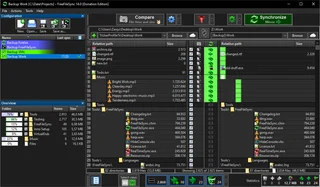
FreeFileSync
Compare folders and preview changes before running two-way sync or mirroring in FreeFileSync.
Review and setup →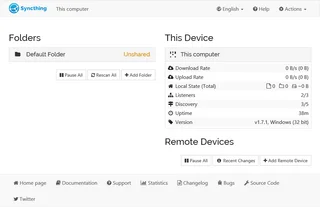
Syncthing
Syncthing: official downloads, device and folder setup, sync verification, propagation of deletions and the difference between sync and backup.
Review and setup →Related reading
Test a backup restore in a separate folder
Check recovered files without overwriting the originals.
Read article →
Passkey, TOTP or SMS: protection of the exchange account
Selection of the method of entry and preparation of access recovery.
Read article →
Fake support for the exchange: how to check the request
Checking the access to the installation of programs and the transfer of access.
Read article →About the author

Crypto, fintech and Web3 expert with a background in marketing. Covers digital-asset projects, industry risks and fraud prevention.
Professional websiteDocumentation and images
Official sources, image credits and review methods
- Download Restic
- Documentation Restic
- Restic: illustration source
- Restic: repository checks
- Official Restic logo; not an application screenshot: illustration source — Restic project; official logo, identification of the reviewed software..
The review was prepared on the project documentation. The installation and independent testing of the distribution within this material was not carried out. The rights to the interface and the names are reserved for the respective rights holders.