 EN

Kopia: encrypted backups and a test restore
Create encrypted file snapshots with KopiaUI on Windows, macOS or Linux. Choose storage, keep the repository password and test restoration before relying on a backup.
What is Kopia used for?
Kopia saves snapshots of selected files and folders in an encrypted repository. KopiaUI provides a desktop interface; the command-line version supports scripting. Both use the same underlying program. You choose local, network or supported cloud storage and arrange access to it yourself.
A repository password protects the backup. Keep it in a separate recoverable location: Kopia cannot recover the files if you lose that password. Cloud capacity and download charges are separate from the open-source software. A repository on the same disk as the originals will not survive loss of that disk.
| Item | Details |
|---|---|
| Platforms | Windows, macOS, Linux |
| Task | File encryption |
| Download source | Use the project’s official page and choose the build for your operating system. |
| Version and terms | Check the version and licence on the developer’s website. |
Choose storage and prove that restoration works
Start with a small folder containing disposable documents. Create a repository, select the source folder and create a snapshot. Record its date and identifier. Retention policies determine which snapshots remain available; review them before adding important data.
Restore the sample into a new empty directory, leaving the original folder untouched. Open restored documents and compare their contents. Repeat the exercise with an older snapshot after changing the sample. This checks whether you can retrieve the version you actually need.
Download Kopia from the official website
On the project’s download page, choose the build for your operating system.
Check the website address. Follow the developer’s instructions for verifying the file’s signature or checksum.
Getting started with Kopia
- Download KopiaUI for your operating system from the official installation page.
- Create or connect to a repository and retain its password separately.
- Create a snapshot of a disposable test folder and record its identifier.
- Restore that snapshot into a separate empty folder and check the files.
- Set the schedule and retention only after the test succeeds; repeat recovery tests after changes.
Kopia interface and illustrations
Kopia logo
Official Kopia logo; not an application screenshot
KopiaOfficial Kopia logo; not an application screenshot
1 of 1. Kopia: Official Kopia logo; not an application screenshot
Limitations and data protection in Kopia
Kopia backs up files and directories rather than producing a bootable image of the whole computer. Open databases need application-specific preparation. Encryption does not stop an attacker with sufficient storage permissions from deleting your repository.
Default snapshot verification checks repository structures and the presence of required data, but does not read and decrypt every file. Full file verification consumes storage traffic; it still does not replace opening restored files in their applications. Do not expose the management interface to the public internet.
Alternatives for related tasks
Choose KopiaUI when you want a graphical backup workflow. Restic is another option for command-line work. Syncthing synchronizes folders; configure a separate recovery strategy because deletions can spread between devices.
Questions and answers
Does Kopia include cloud storage?
No. You provide the storage and pay any provider charges, including downloads.
Can I recover a forgotten repository password?
The documentation says the backed-up files cannot be restored without the repository password. Keep a protected copy outside the backed-up computer.
Does a successful verification prove every file opens?
No. Verification options differ. Restore a representative sample and open the documents with the software that uses them.
Can Kopia restore the whole operating system?
Kopia is a file and directory backup tool, not a whole-machine imaging tool.
Other tools for similar tasks
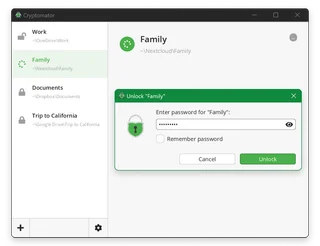
Cryptomator
Cryptomator: encrypt files before syncing to the cloud, create a vault, save a recovery key and back up your files.
Review and setup →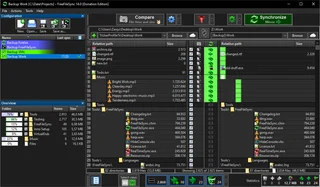
FreeFileSync
Compare folders and preview changes before running two-way sync or mirroring in FreeFileSync.
Review and setup →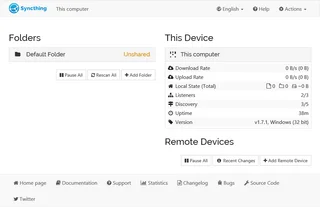
Syncthing
Syncthing: official downloads, device and folder setup, sync verification, propagation of deletions and the difference between sync and backup.
Review and setup →Related reading
Test a backup restore in a separate folder
Check recovered files without overwriting the originals.
Read article →
Passkey, TOTP or SMS: protection of the exchange account
Selection of the method of entry and preparation of access recovery.
Read article →
Fake support for the exchange: how to check the request
Checking the access to the installation of programs and the transfer of access.
Read article →About the author

Crypto, fintech and Web3 expert with a background in marketing. Covers digital-asset projects, industry risks and fraud prevention.
Professional websiteDocumentation and images
Official sources, image credits and review methods
- Download Kopia
- Documentation Kopia
- Kopia: illustration source
- Kopia: verification
- Official Kopia logo; not an application screenshot: illustration source — Kopia project / GitHub; official logo, identification of the reviewed software..
The review was prepared on the project documentation. The installation and independent testing of the distribution within this material was not carried out. The rights to the interface and the names are reserved for the respective rights holders.