 EN
Bitwarden: review, download and setup
Bitwarden: official downloads, extension setup, autofill, account protection and access recovery.
What is Bitwarden used for?
Bitwarden is a password manager with a web client, applications and extensions. It is suitable for working with one storage on multiple devices. The possibilities depend on the product and plan: the conditions of the organization can not be automatically transferred to your personal account.
Configure not only the saving of records, but also the protection of the account. The master password, the additional factor and the means of recovery solve different tasks. Loss of the latter factor can become a problem even with working synchronization.
| Item | Details |
|---|---|
| Platforms | Web client, extensions, Windows, macOS, Linux, Android, iOS |
| Use case | Password managers |
| Download source | Use the project’s official page and choose the build for your operating system. |
| Version and terms | Current builds and conditions of use are given from the developer. The review does not record the unchanged version number. |
Bitwarden extension: URL and auto-filling
Install the client on the official page link. Check the server environment of the account if a choice is offered. The client must go to where the account is created; an empty list of records does not always mean data loss.
The record must have the right URL. Auto-filling compares addresses, but the user still needs to understand what domain is on. Do not insert the exchange password manually to a similar page. To meet, check the password change cycle of a separate insignificant account.
Download Bitwarden from the official website
Select the supported platform on the project page. The link leads to the selection of the distribution, and does not start the installation automatically.
Use the official download address. Check the signature or checksum if the project publishes one. Keep secret configuration files private when contacting support.
Getting started with Bitwarden
- Select an extension or app on the Bitwarden download page.
- Connect your account in the right environment and install a unique master password.
- Configure the second factor and save the specified recovery code outside the single device.
- Add a test record with the correct URL and check the form on the desired domain.
- After changing the password, check the recording and synchronization with another client.
Bitwarden interface and illustrations
Interface screenshots
The origin of the images is indicated in the sources below. The interface of the installed version may differ.
BitwardenSelecting an auto-fill record in Bitwarden extension
1 of 1. Bitwarden: Selecting an auto-fill record in Bitwarden extension
Limitations and data protection in Bitwarden
A vault cannot protect against every action on an unlocked device. Configure client locking and operating system protections, and use the clipboard carefully. Keep security checks enabled when a warning appears.
Check which export format you are using. Some formats are designed for transfer. Keep unencrypted password exports out of shared folders, download directories and cloud trash.
Alternatives for related tasks
For a local file with your copy system, compare KeePassXC. Evaluate Bitwarden synchronization with account dependency and recovery plan. The manager complements passkey and TOTP, not replaces the choice of factors.
Questions and answers
Does Bitwarden protect against phishing?
Oh, no. Comparison of the URL helps, but does not guarantee protection against any attack. Check the domain.
Is Synchronization equal to backup?
Oh, no. Deletions and errors can be synchronized. Need a separate secure copy and a recovery plan.
Can I keep the export in downloads?
Just understanding its format. Unencrypted exports contain secrets and should not remain accessible to other people.
Other tools for similar tasks
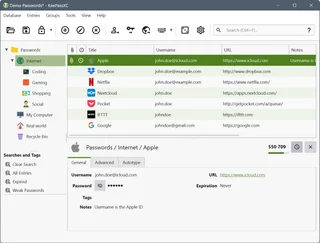
KeePassXC
KeePassXC: create a local KDBX password database, generate passwords, make backups and connect the browser extension.
Review and setup →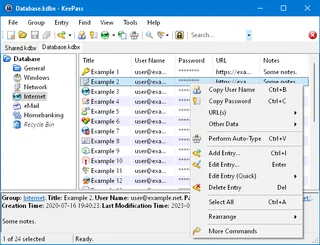
KeePass
KeePass: local KDBX password databases, official downloads, master key setup, password generation and backup verification.
Review and setup →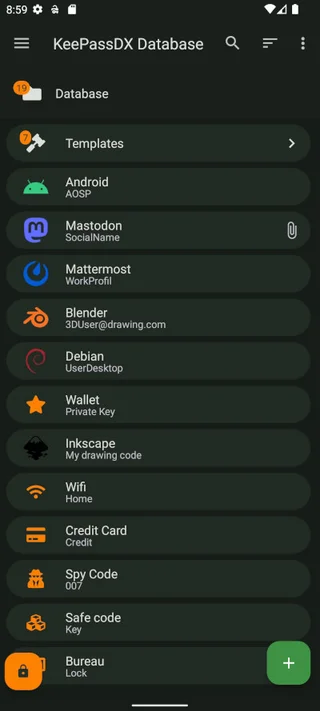
KeePassDX
KeePassDX: a local password database on Android, trusted installation sources, autofill, locking and KDBX backups.
Review and setup →Related reading

Passkey, TOTP or SMS: protection of the exchange account
Selection of the method of entry and preparation of access recovery.
Read article →
Fake support for the exchange: how to check the request
Checking the access to the installation of programs and the transfer of access.
Read article →About the author

Crypto, fintech and Web3 expert with a background in marketing. Covers digital-asset projects, industry risks and fraud prevention.
Professional websiteDocumentation and images
Official sources, image credits and review methods
- Download Bitwarden
- Documentation Bitwarden
- Selecting an auto-fill record in Bitwarden extension: illustration source — Screenshot of the official documentation or site of the project; editorial illustration of the interface, rights of the rightholder.
The review was prepared on the project documentation. The installation and independent testing of the distribution within this material was not carried out. The rights to the interface and the names are reserved for the respective rights holders.