 EN
Nextcloud Desktop: review, download and setup
Sync folders with your Nextcloud server, choose directories and check which files are available locally.
What is Nextcloud Desktop used for?
The Nextcloud desktop client syncs the computer files with the selected Nextcloud server. You need a server address and an account. Installing the client by itself does not provide ready-made cloud storage.
The server can be served by an organization, provider or user itself. The size, shared access and file history depend on its settings. Check who manages the server and backups before you connect.
| Item | Details |
|---|---|
| Platforms | Windows, macOS, Linux |
| Use case | Secure file transfer |
| Download source | Use the project’s official page and choose the build for your operating system. |
| Version and terms | Current builds and conditions of use are given from the developer. The review does not record the unchanged version number. |
Choose folders and check local copies
Start with a small folder. When logging in, check the authorization page address and permission to the client. After synchronization, open the file via the web interface and on the computer, then check the change in the opposite direction.
Classical synchronization and virtual files have different behaviors. Having a name in the conductor does not always mean that the contents are available without a network. The capabilities depend on the platform and the selected mode.
Download Nextcloud Desktop from the official website
Select the supported platform on the project page. The link leads to the selection of the distribution, and does not start the installation automatically.
Use the official download address. Check the signature or checksum if the project publishes one. Keep secret configuration files private when contacting support.
Getting started with Nextcloud Desktop
- Get the trusted server address and account.
- Install the official customer of your platform.
- Log in and select a test folder.
- Check the change in both directions.
- Configure the necessary directories and check the work without the network.
Nextcloud Desktop interface and illustrations
Interface screenshots
The origin of the images is indicated in the sources below. The interface of the installed version may differ.
Nextcloud DesktopNextcloud: synchronization state and connected folders
1 of 1. Nextcloud Desktop: Nextcloud: synchronization state and connected folders
Limitations and data protection in Nextcloud Desktop
Deleting or corrupting the file may be synchronized to other devices. Version history and server cart are useful, but do not replace an independent backup.
Normal HTTPS synchronization does not automatically mean end-to-end encryption of content from the server administrator. This mode requires separate checks and settings.
Alternatives for related tasks
Syncthing synchronizes folders between devices without a mandatory central Nextcloud server. Nextcloud is convenient if there is a managed server, web access and collaboration.
Questions and answers
Does the customer include a free server?
Oh, no. You need an existing account on the server of the organization, provider or own installation.
Are all visible files available without the internet?
You don't have to. When virtual files, part of the content is loaded on request; check the availability offline.
Sync replaces the backup?
Oh, no. Erroneous changes can also spread. A separate copy strategy is needed for recovery.
Other tools for similar tasks
Syncthing
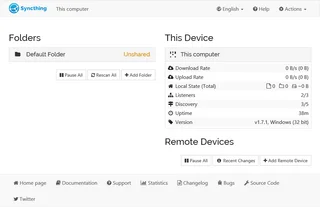
Syncthing: official downloads, device and folder setup, sync verification, propagation of deletions and the difference between sync and backup.
Review and setup →
rclone
Copy or sync cloud files with rclone, verify the direction and explore its optional web interface.
Review and setup →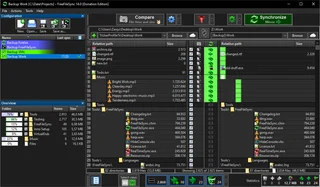
FreeFileSync
Compare folders and preview changes before running two-way sync or mirroring in FreeFileSync.
Review and setup →Related reading

Passkey, TOTP or SMS: protection of the exchange account
Selection of the method of entry and preparation of access recovery.
Read article →
Fake support for the exchange: how to check the request
Checking the access to the installation of programs and the transfer of access.
Read article →About the author

Crypto, fintech and Web3 expert with a background in marketing. Covers digital-asset projects, industry risks and fraud prevention.
Professional websiteDocumentation and images
Official sources, image credits and review methods
- Download Nextcloud Desktop
- Documentation Nextcloud Desktop
- Nextcloud: synchronization state and connected folders: illustration source — Official materials of docs.nextcloud.com; editorial illustration of the interface, rights of the rightholder.
The review was prepared on the project documentation. The installation and independent testing of the distribution within this material was not carried out. The rights to the interface and the names are reserved for the respective rights holders.