 EN
2FAS Auth: login codes, backups and browser integration
2FAS Auth for Android and iOS: offline login codes, encrypted exports, cloud sync, browser pairing and recovery when changing phones.
What is 2FAS Auth used for?
2FAS Auth generates one-time login codes on a phone. It supports TOTP and HOTP and works without a separate 2FAS account. Use it when a website offers an authenticator app as a second login factor. 2FAS Pass is a different product: this review covers the authenticator and its companion browser extension.
| Item | Details |
|---|---|
| Platforms | Android, iOS, iPadOS |
| Task | Password managers |
| Download source | Use the project’s official page and choose the build for your operating system. |
| Version and terms | Check the version and licence on the developer’s website. |
2FAS Auth interface and illustrations
The developer's published interface illustration shows the token list, account labels, search and the time remaining for a code. The displayed accounts and codes are demonstration content.
Interface screenshots
Image sources are listed below. Other versions may have a different interface.
2FAS Auth2FAS Auth token list in the developer's published phone illustration
1 of 1. 2FAS Auth: 2FAS Auth token list in the developer's published phone illustration
Download 2FAS Auth from the official website
Start from the official download page and choose 2FAS Auth, not 2FAS Pass. The page links to the app stores and the Android release repository. On the review date it lists Android 9.0 or later; the App Store confirms iOS and iPadOS 18.6 or later. Check the store's compatibility for your device before changing authenticators.
Check the website address. Follow the developer’s instructions for verifying the file’s signature or checksum.
Getting started with 2FAS Auth
- Install the official mobile app and enable the app lock available on your device.
- At a service you already use, open its security settings and select authenticator-based two-factor authentication. Keep its recovery codes separately.
- Add the service's QR code or setup secret to 2FAS Auth, then confirm setup with a generated code on the real service page.
- Create a password-protected export in 2FAS Backup and store it outside the phone. Record how you will recover the export password.
- Test a normal sign-in and your backup arrangement before removing the previous authenticator or resetting the old phone.
When 2FAS Auth fits
Keep login codes on an Android phone or iPhone while using a separate password manager.
Move authenticator entries between Android and iOS through a password-protected 2FAS Backup file.
Approve a browser-extension request on the paired phone instead of manually retyping a code.
Cloud sync and a separate recovery copy
Android uses Google Drive synchronisation; iOS uses iCloud. These are platform-specific paths tied to the selected Google or Apple account. For an Android-to-iPhone move, use a local 2FAS Backup export and import rather than expecting the Google Drive copy to appear in iCloud. The support instructions recommend protecting the export with a password.
Synchronisation also carries changes to entries. Keep a separate export and refresh it after adding or changing tokens. For example, after enrolling a new email account, update the offline copy before wiping the old phone. Restoring an earlier export cannot recreate a token added after that export. A cloud backup password also needs its own recovery plan.
What the browser extension does
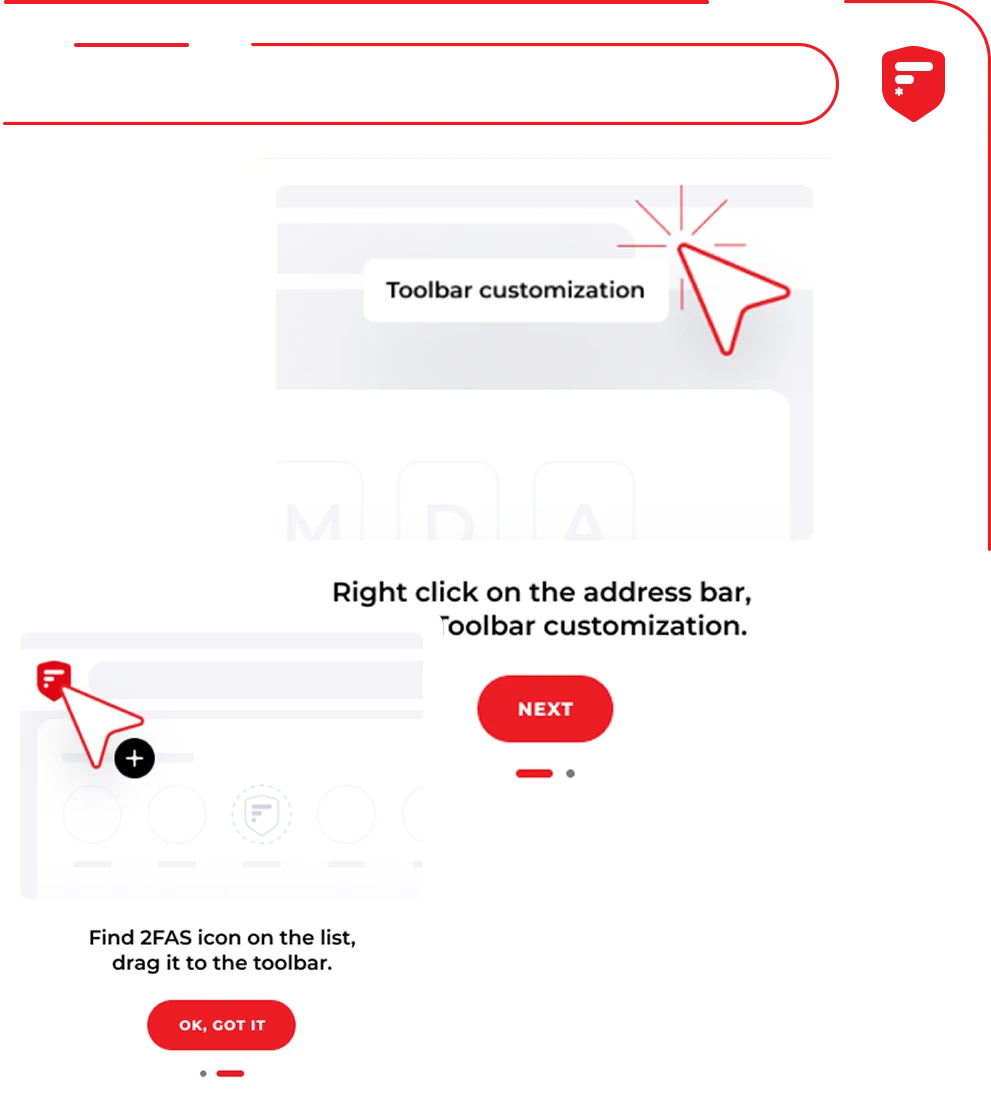
The companion extension pairs with the mobile app. You request a token in the browser and approve the request on the phone; it is not a standalone desktop authenticator. The official page lists Chrome, Brave, Firefox, Edge, Opera and Safari. According to 2FAS, phone-to-browser communication is end-to-end encrypted. This describes that communication path, not a guarantee about the website where a code is entered.
For a first trial, pair your own browser profile and use an account you can recover. Confirm the destination domain and the account label on the phone. Remove a pairing when you stop using that browser or computer. The extension is optional: manual entry of a code remains a different workflow.
Recovery belongs to the account owner
If the phone and every backup are lost, 2FAS support cannot supply the missing tokens. Recovery then depends on the protected service's recovery codes, another enrolled factor or its account-recovery process. Keep those options separate from the phone you are protecting. A working authenticator also does not make a copied login page legitimate: enter codes only at the service you intended to visit.
Cost and components
The authenticator is free. The Android source repository uses GPL-3.0; graphics have separate terms. Pricing displayed for 2FAS Pass belongs to the password manager and should not be applied to Auth. Store availability and operating-system requirements can change independently of the backup file you already hold.
| Component | Cost or requirement | What it provides |
|---|---|---|
| 2FAS Auth mobile app | Free; Android or iOS | Local generation of supported one-time codes |
| Browser extension | Paired mobile app required | Request and approve a code from the browser |
| Backup and synchronisation | Your storage and account access | Local export or platform-specific cloud recovery |
Limitations and data protection in 2FAS Auth
A service must support the authenticator method you are enrolling; installing the app alone does not enable two-factor authentication on an account.
Cloud recovery depends on the relevant account, available backup and any additional backup password.
The browser extension needs its paired phone; losing the phone still requires a recovery route.
Alternatives for related tasks
Compared with Aegis, 2FAS offers an iOS app as well as Android. Compare it with Ente Auth if your main requirement is access to codes across several device types. Choose based on the devices you actually use and a tested recovery procedure, rather than the number of logos shown in an app's token list.
Questions and answers
Does generating a code require internet access?
The mobile app generates supported codes offline. Cloud synchronisation and browser communication are separate functions that use connectivity.
Can I move from Android to iPhone?
Use a local 2FAS Backup export and import. Protect the file with a password and test the imported entries before resetting the old device.
Is this the 2FAS password manager?
No. 2FAS Auth generates authentication codes; 2FAS Pass is the separate password-manager product.
Other tools for similar tasks

Aegis Authenticator
Manage two-step verification codes with Aegis on Android, export an encrypted vault and check recovery before replacing your phone.
Review and setup →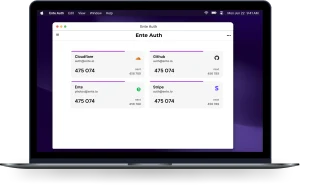
Ente Auth
Ente Auth review: mobile, desktop and web access to 2FA codes, offline mode, encrypted exports and a practical recovery plan before changing devices.
Review and setup →
KeePassXC
KeePassXC: create a local KDBX password database, generate passwords, make backups and connect the browser extension.
Review and setup →Related reading
Passkey, TOTP or SMS: protection of the exchange account
Selection of the method of entry and preparation of access recovery.
Read article →
Fake support for the exchange: how to check the request
Checking the access to the installation of programs and the transfer of access.
Read article →About the author

Crypto, fintech and Web3 expert with a background in marketing. Covers digital-asset projects, industry risks and fraud prevention.
Professional websiteDocumentation and images
Official sources, image credits and review methods
- Download 2FAS Auth
- Documentation 2FAS Auth
- 2fas.com/support/2fas-auth-mobile-app/i-want-to-move-copy-transfer-tokens-codes-between-ios-and-android/
- 2fas.com/support/2fas-auth-mobile-app/how-does-icloud-synchronization-work/
- 2fas.com/support/2fas-auth-mobile-app/how-does-google-drive-synchronization-work/
- 2fas.com/auth/browser-extension/
- 2fas.com/support/2fas-auth-mobile-app/i-have-lost-all-of-my-tokens-codes/
- 2fas.com/auth/
- github.com/twofas/2fas-android
- 2FAS Auth token list in the developer's published phone illustration: illustration source — Interface illustration from the official 2FAS website; rights remain with the owner.
The review was prepared on the project documentation. The installation and independent testing of the distribution within this material was not carried out. The rights to the interface and the names are reserved for the respective rights holders.