 EN
Ente Auth: 2FA codes, encrypted backups and device migration
Ente Auth review: mobile, desktop and web access to 2FA codes, offline mode, encrypted exports and a practical recovery plan before changing devices.
What is Ente Auth used for?
Ente Auth generates one-time login codes for accounts that support an authenticator app. It keeps the setup secret for each account and calculates the current code on your device. You can use it locally without an account or sign in to Ente for end-to-end encrypted backup and synchronization.
The useful distinction is between access today and recovery tomorrow. A second device and an encrypted export serve different purposes: synchronization keeps entries available, while an export gives you a separate recovery file.
| Item | Details |
|---|---|
| Platforms | Android, iOS, Windows, macOS, Linux, Web |
| Task | Password managers |
| Download source | Use the project’s official page and choose the build for your operating system. |
| Version and terms | Platform and documentation check: 15 November 2026. Free app with optional encrypted synchronization. |
Ente Auth interface and illustrations
The official product illustrations show the code list on mobile and desktop. Each entry identifies the service and account; search, tags and pinned entries help with larger collections. These are developer illustrations, not screenshots from an udarknet test.
Interface screenshots
Image sources are listed below. Other versions may have a different interface.
Ente AuthDesktop code list
1 of 2. Ente Auth: Desktop code list
Download Ente Auth from the official website
The official page links to Android, iOS, Windows, macOS and Linux builds and the web app. Choose the platform there. Auth is free and open source under AGPL-3.0; an Ente Photos subscription is not required.
Keep the recovery codes issued by each service separately from the authenticator. They provide a different route back into that particular account.
Getting started with Ente Auth
- Install the official app and choose an Ente account or Use without backups.
- In one service's security settings, enable authenticator-based 2FA. Scan its QR code or enter the setup secret, then confirm with the generated code.
- Save that service's recovery codes outside the authenticator. Keep the old login method until the new setup works.
- If using synchronization, sign in on another trusted device and check that the required entries appear.
- Open Settings → Data → Export, select Encrypted and choose a password for the export. Save the file separately.
- Test importing the export before replacing the original phone or reinstalling its operating system.
Where Ente Auth fits
It suits people who want the same authenticator entries on a phone and a computer, and those moving away from a phone-only workflow. Tags and account labels help distinguish personal and work logins. Offline mode suits a device-local collection when you are prepared to maintain your own backups.
Local storage and synchronized codes
| Mode | Where entries are available | Recovery preparation |
|---|---|---|
| Offline | On this device | Encrypted export or local backup |
| Ente account | Signed-in devices through encrypted sync | Account recovery and separate export |
| Encrypted export | A file you store yourself | Export file and its own password |
Before a device reset
Offline storage uses a key protected by the operating system's secure storage. Copying the database or restoring a general device backup may leave that key unavailable. Export from the working app before a reset, migration or major system change.
Organizing accounts and moving from another app
Add a clear account name when a service has several logins. Use tags for groups and pin the entries used most often. Notes can record which account an entry belongs to without putting passwords into its label.
Import, then verify
- Use the migration instructions for the previous authenticator; available export formats differ.
- Check the service and account labels after import.
- Try a login before deleting the old copy.
- Treat an unencrypted export or setup QR code as the underlying account secret.
Export passwords and ongoing maintenance
An encrypted export has the password chosen when that file was created. It is not automatically your Ente account password, and a later account-password change does not update an older export. Keep the export password in a place available after losing the original device.
Limitations and data protection in Ente Auth
A copied one-time code can still be submitted to a phishing page. Check the service address before entering it; use passkeys or a hardware security key where the service supports them.
Offline mode does not synchronize entries to Ente. Desktop and directly downloaded Android builds may still check for app updates.
Alternatives for related tasks
Aegis is a useful alternative for an Android-focused local vault. Bitwarden and KeePassXC address broader password storage workflows. Ente Auth is the focused choice here when cross-platform authenticator access is the main task.
Questions and answers
Can it generate codes without internet?
The app can calculate stored time-based codes offline. Synchronization and web access require a connection.
Is an export password the same as my account password?
Only if you deliberately chose the same value. The export uses its own password, fixed when the file was created.
Does changing phones require disabling 2FA?
Usually you can transfer the authenticator entries and test them first. Keep the service's recovery codes available throughout the move.
Other tools for similar tasks

Aegis Authenticator
Manage two-step verification codes with Aegis on Android, export an encrypted vault and check recovery before replacing your phone.
Review and setup →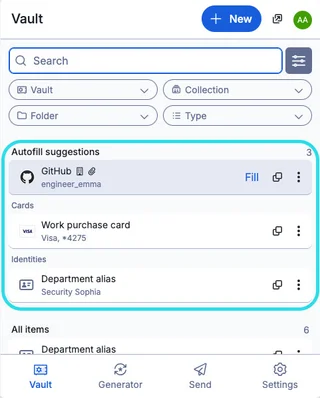
Bitwarden
Bitwarden: official downloads, extension setup, autofill, account protection and access recovery.
Review and setup →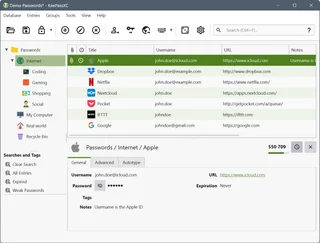
KeePassXC
KeePassXC: create a local KDBX password database, generate passwords, make backups and connect the browser extension.
Review and setup →Related reading

Passkey, TOTP or SMS: protection of the exchange account
Selection of the method of entry and preparation of access recovery.
Read article →
Fake support for the exchange: how to check the request
Checking the access to the installation of programs and the transfer of access.
Read article →About the author

Crypto, fintech and Web3 expert with a background in marketing. Covers digital-asset projects, industry risks and fraud prevention.
Professional websiteDocumentation and images
Official sources, image credits and review methods
- Download Ente Auth
- Documentation Ente Auth
- Official documentation · ente.com / offline-mode
- Official documentation · ente.com / export
The review was prepared on the project documentation. The installation and independent testing of the distribution within this material was not carried out. The rights to the interface and the names are reserved for the respective rights holders.