 EN
Warpinator: send files between computers on your LAN
Warpinator for Linux: local file transfers, group codes, incoming-folder isolation, official installation sources and a first transfer with approval.
What is Warpinator used for?
Warpinator sends files between devices on a local network. Its main window discovers peers, and selecting a device opens the transfer view. It suits an occasional document or folder handoff when both computers are available, without setting up an FTP or shared-file server. It does not keep two folders continuously synchronised.
| Item | Details |
|---|---|
| Platforms | Linux |
| Task | Secure file transfer |
| Download source | Use the project’s official page and choose the build for your operating system. |
| Version and terms | Check the version and licence on the developer’s website. |
Warpinator interface and illustrations
The screenshot published by the XApp project shows the peer list, device names, local addresses and connection indicators. Those names identify entries in the developer's illustration; confirm the actual recipient on your own network before sending files.
Interface screenshots
Image sources are listed below. Other versions may have a different interface.
WarpinatorWarpinator peer list in the screenshot published by the XApp project
1 of 1. Warpinator: Warpinator peer list in the screenshot published by the XApp project
Download Warpinator from the official website
Use the Linux Mint project repository and its installation links. Current Linux distributions may offer a package, and the repository links to the Warpinator Flatpak on Flathub. Select the method supported by your distribution rather than following an old distribution-version example verbatim. The README lists Android and Windows implementations separately as unofficial projects; they have their own maintainers and release cycles.
Check the website address. Follow the developer’s instructions for verifying the file’s signature or checksum.
Getting started with Warpinator
- Install Warpinator from your distribution's package source or the Flathub page linked by the official repository, on both Linux computers.
- Open preferences and replace the default group code with the same private code on both devices. Use the documented length of 8–32 standard letters and digits.
- Choose a dedicated incoming folder and keep approval enabled for incoming transfers during the first test.
- Connect both devices to a network that allows them to communicate. In the peer list, confirm the receiving computer with its owner.
- Send a small non-sensitive file, approve it on the receiver and open the saved result before transferring the real folder.
Where Warpinator fits
Move documents from one Linux computer to another on the same local network.
Hand a folder to a colleague who can confirm the receiving device and approve the transfer.
Avoid creating a permanent shared folder for an occasional exchange.
Group codes and transfer approval
The group code is the shared key used by devices to find each other in Warpinator. Changing the default code to a unique value enables the application's secure mode. Treat the code as access information for that group: give it to the intended participants rather than publishing it in a general chat. Matching codes do not identify the person physically using a computer.
The official README describes restrictions before secure mode is enabled, including mandatory incoming approval, no automatic login start and a sixty-minute exit. For a shared workspace, retaining explicit approval is a useful choice even after setting a private group code. Confirm the requested files and available destination space before accepting a large transfer.
When another computer does not appear
Automatic discovery depends on local network reachability. The Flathub listing also documents manual connections for restricted environments. Check that both applications are running, group codes match and the network permits device-to-device traffic. Guest Wi-Fi or client isolation can prevent peers from communicating even when both devices have internet access.
Do not disable the whole firewall to make a test pass. Identify the selected network interface and use the application's documented networking requirements with the network owner. A manual address is not a way around a network policy. If the exchange must happen across the internet, compare a tool designed for that delivery path rather than assuming a LAN peer list supplies it.
Incoming-folder isolation
The project documents automatic use of Linux Landlock when available and a Bubblewrap fallback outside Flatpak. If neither is available, it can operate in a legacy mode without folder isolation. Flatpak has different constraints because it already uses Bubblewrap; the README describes restricting filesystem permissions when Landlock is unavailable. Check the mode and package instructions on the actual receiving system. A completed file transfer does not establish that an incoming document is safe to open.
Cost and delivery model
| Component | What to expect | Boundary |
|---|---|---|
| Linux application | Free, GPL-3.0 source project | Package support depends on the chosen distribution |
| Local transfer | Both peers available and reachable | No permanent cloud inbox is provided |
| Android or Windows counterpart | Separate unofficial implementations | Review that project's downloads and maintenance |
Limitations and data protection in Warpinator
Both endpoints and the local network must support the chosen connection; successful internet browsing does not prove peer reachability.
Receiving-folder protection depends on Linux capabilities, package format and configuration.
A transfer is a copy operation, not a continuously maintained synchronisation or backup policy.
Alternatives for related tasks
Choose Syncthing when the task is to keep selected folders synchronised over time. Compare LocalSend for a one-off exchange across different operating systems, checking its current platform support. Warpinator is a straightforward choice for an existing Linux desktop environment where the recipient can participate in the transfer.
Questions and answers
Do I need a cloud account?
The described workflow exchanges files between local peers; it does not require creating a cloud-storage account.
Is the Windows version maintained by Linux Mint?
The official README labels its listed Windows counterparts as unofficial. Treat their support and download sources separately.
Will changing a source file update the received copy?
Do not treat this transfer as ongoing folder synchronisation. Send the updated file deliberately or choose a synchronisation tool for that requirement.
Other tools for similar tasks
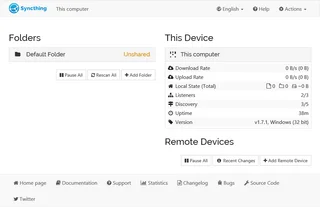
Syncthing
A practical Syncthing review: sync folders across your devices, choose folder modes, keep file versions and understand desktop and mobile options.
Review and setup →
LocalSend
LocalSend: official apps, local file transfers between phones and computers, recipient checks and device discovery troubleshooting.
Review and setup →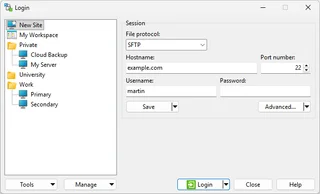
WinSCP
WinSCP: official downloads, SFTP setup, host key verification and file synchronization without unintended overwrites.
Review and setup →Related reading
Passkey, TOTP or SMS: protection of the exchange account
Selection of the method of entry and preparation of access recovery.
Read article →
Fake support for the exchange: how to check the request
Checking the access to the installation of programs and the transfer of access.
Read article →About the author

Crypto, fintech and Web3 expert with a background in marketing. Covers digital-asset projects, industry risks and fraud prevention.
Professional websiteDocumentation and images
Official sources, image credits and review methods
- Download Warpinator
- Documentation Warpinator
- github.com/linuxmint/warpinator
- flathub.org/en/apps/org.x.Warpinator
- github.com/linuxmint/warpinator
- Warpinator peer list in the screenshot published by the XApp project: illustration source — Screenshot of the official documentation or site of the project; editorial illustration of the interface, rights of the rightholder.
The review was prepared on the project documentation. The installation and independent testing of the distribution within this material was not carried out. The rights to the interface and the names are reserved for the respective rights holders.