 EN
NoMachine: remote desktop, editions and connection setup
NoMachine review: Player versus Personal Edition, annual subscriptions, local-network access, file transfer and permissions. Official downloads and first connection.
What is NoMachine used for?
NoMachine provides a graphical session on another computer: you can view its desktop, work with applications and use supported file or device-sharing features. The controlled computer needs a server-capable edition. Player is the connecting client. Choosing between these roles comes before choosing a subscription.
| Item | Details |
|---|---|
| Platforms | Windows, macOS, Linux |
| Task | Networking and tunnels |
| Download source | Use the project’s official page and choose the build for your operating system. |
| Version and terms | Check the version and licence on the developer’s website. |
NoMachine interface and illustrations
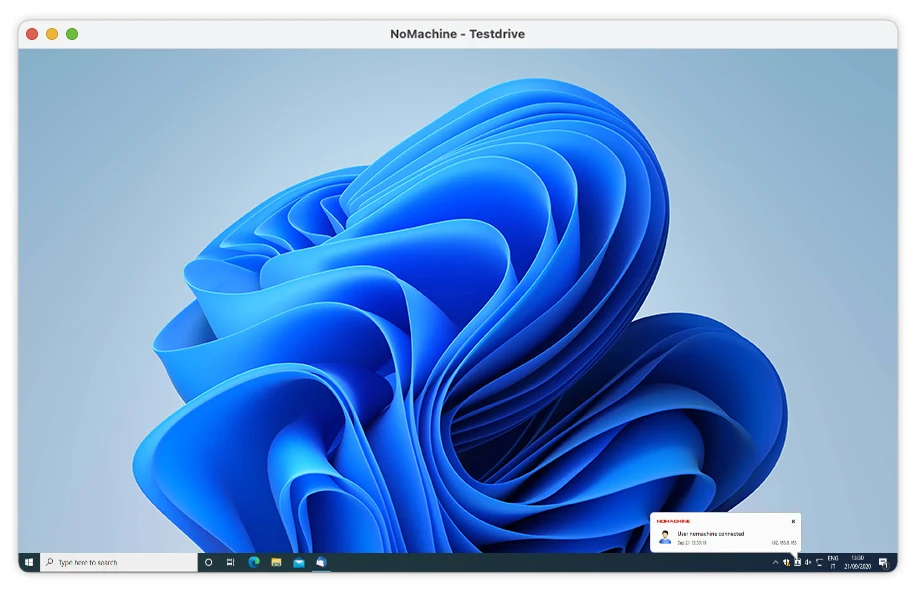
The official tutorial shows saved machines and an open remote desktop. These are developer screenshots; the names and addresses belong to its demonstration. The connection menu provides display and session controls.
Interface screenshots
Image sources are listed below. Other versions may have a different interface.
NoMachineNoMachine: saved machines in the official tutorial
1 of 1. NoMachine: NoMachine: saved machines in the official tutorial
Download NoMachine from the official website
Start at the official download page for Windows, macOS or Linux. Install the server-capable product on the computer you want to reach and Player on the connecting device. Mobile clients have their own platform-specific functions.
Check the website address. Follow the developer’s instructions for verifying the file’s signature or checksum.
Getting started with NoMachine
- Choose the receiving computer and install the appropriate NoMachine edition.
- Activate the server: obtain a trial or purchased licence in your User Area, then upload its file in Settings > Server > Updates > License info.
- Check its account credentials and enable only the sharing permissions you need.
- On the other device, open Player and select the discovered machine or add its address.
- Authenticate with an authorised account and complete any confirmation required by the receiving side.
- Open a harmless document, check display scaling and disconnect. Test file sharing separately before using work data.
Who it suits
It suits access to your own workstation and agreed remote support. For a first connection, use two machines on the same local network; internet access also depends on addressing, routing and the chosen Network service or network configuration.
Connection path and session permissions
Direct access by address and the optional NoMachine Network service are different connection arrangements. Network helps connect over the internet without managing the remote IP address yourself. It has its own subscription. Browser access and enterprise management features belong to the corresponding Enterprise products, not automatically to Player.
- Review clipboard, file transfer and shared-device permissions for each use case.
- Keep the host awake and reachable when you expect unattended access.
- Use the official guides for two-factor authentication and disabling local-desktop access when it is no longer needed.
Published entry prices: USD, checked 15 November 2026
| Product | Published price | Role |
|---|---|---|
| Player | Free | Connect to a NoMachine installation |
| Personal Edition | From $24.50/year | Server subscription; trial available |
| Enterprise Desktop | From $44.50/year | Enterprise desktop access; trial available |
| NoMachine Network | Separate subscription | Optional internet connection service |
These are starting annual prices from the official comparison, not monthly charges. Check the selected server count, subscription and checkout total. Enterprise Desktop and Personal Edition have different connection limits and management features.
Limitations and data protection in NoMachine
Player alone does not turn a computer into a host. Choose the product for each end of the connection.
Remote access exposes the authorised account's desktop and files. Remove unused access and restrict sharing to the agreed task.
Alternatives for related tasks
RustDesk offers a different model with an optional self-hosted ID and relay server. Remmina is a client for several protocols. Tailscale supplies private network connectivity rather than the desktop session itself.
Questions and answers
Is NoMachine entirely free?
The current comparison lists a free Player and paid server subscriptions. Do not apply older free-edition descriptions to the current products.
Do I need Network on a local network?
A direct reachable connection by address is a separate option. Follow the local-network tutorial first.
Can I transfer a file?
File transfer is documented; check the session permissions and the features of your chosen edition.
Other tools for similar tasks
RustDesk
RustDesk review: remote access, client permissions, your own ID and relay server, OSS versus Pro, annual pricing and the first connection.
Review and setup →
Remmina
Set up RDP, VNC and SSH profiles in this Linux remote desktop client and test your first connection.
Review and setup →
Tailscale
Tailscale: install the client, connect to your devices, manage network members and check routes without routing all traffic through the VPN.
Review and setup →Related reading
Passkey, TOTP or SMS: protection of the exchange account
Selection of the method of entry and preparation of access recovery.
Read article →
Fake support for the exchange: how to check the request
Checking the access to the installation of programs and the transfer of access.
Read article →About the author

Crypto, fintech and Web3 expert with a background in marketing. Covers digital-asset projects, industry risks and fraud prevention.
Professional websiteDocumentation and images
Official sources, image credits and review methods
- Download NoMachine
- Documentation NoMachine
- Official source · www.nomachine.com / getting-started-with-nomachine
- Official source · www.nomachine.com / compare-features
- Official source · www.nomachine.com / network
The review was prepared on the project documentation. The installation and independent testing of the distribution within this material was not carried out. The rights to the interface and the names are reserved for the respective rights holders.