 EN
RustDesk: remote desktop, self-hosting and Server Pro costs
RustDesk review: remote access, client permissions, your own ID and relay server, OSS versus Pro, annual pricing and the first connection.
What is RustDesk used for?
RustDesk connects to a remote computer for screen sharing, keyboard and mouse control, and file transfer. It can use the project's public infrastructure or an ID and relay server you operate. That makes it relevant both to occasional support and to teams that want to manage their own connection infrastructure.
Separate the desktop client from the server edition. Installing a client gives you the connection interface; a self-hosted server handles device discovery and relaying, while Server Pro adds management features.
| Item | Details |
|---|---|
| Platforms | Windows, macOS, Linux, Android |
| Task | Networking and tunnels |
| Download source | Use the project’s official page and choose the build for your operating system. |
| Version and terms | Checked 15 November 2026. Open-source client and Server OSS; Server Pro is a separate paid self-hosted product. |
RustDesk interface and illustrations
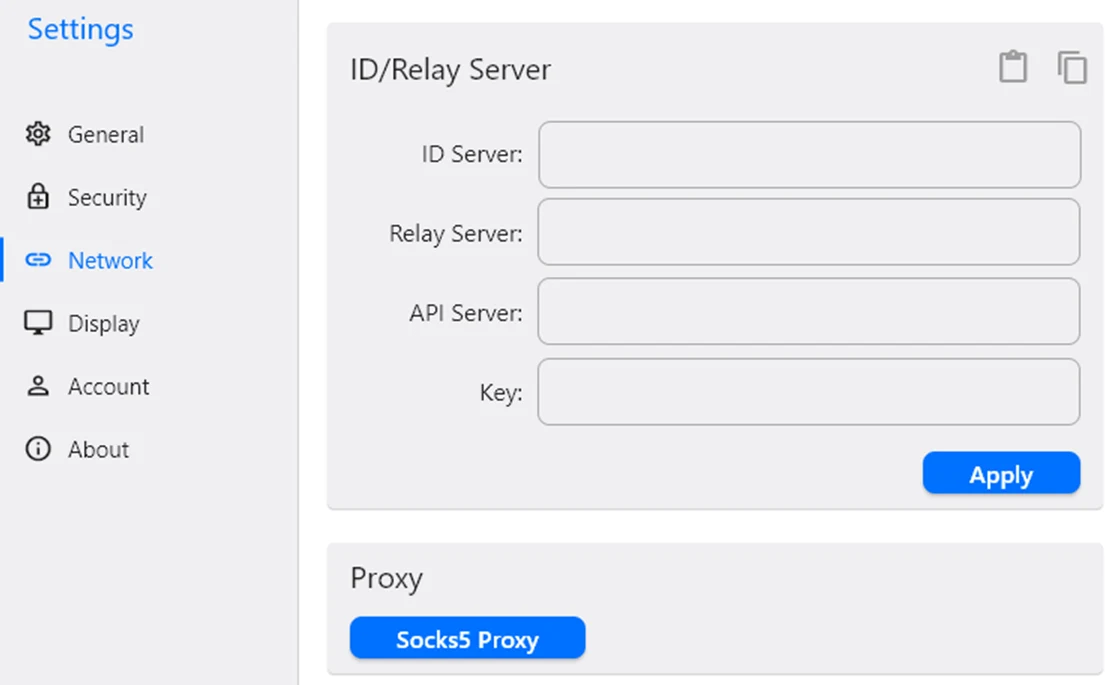
The documentation screenshot shows your device ID and the field for connecting to another device. The settings menu contains security permissions, network/server configuration and display options. The second image below shows the server fields.
Interface screenshots
Image sources are listed below. Other versions may have a different interface.
RustDeskClient connection window
1 of 1. RustDesk: Client connection window
Download RustDesk from the official website
Use rustdesk.com to reach the official releases. Clients cover Windows, macOS, Linux and Android; capabilities and permissions vary by platform. Choose the package for the machine that will be controlled as well as the machine providing support.
For a first session, use two devices you control and an explicitly agreed connection. On macOS, grant the required screen-recording and accessibility permissions through system settings.
Getting started with RustDesk
- Download official clients for both devices and start them.
- On the receiving computer, review permissions for control, clipboard and file transfer.
- Obtain its ID through your agreed communication channel and enter it on the controlling device.
- Confirm the session on the receiving side or use the access method configured by its owner.
- Test a harmless task, check display scaling and close the connection.
- Enable unattended access only for a defined need; document who can use it and how that access will be removed.
Remote support and access to your own computer
A support technician can see an agreed problem on a user's desktop; a home user can reach a computer left running elsewhere. For an organization, the choice of server affects who maintains updates, relay capacity and access settings. Self-hosting brings those operational tasks to your team.
How your own RustDesk server works
Server OSS uses hbbs for ID/rendezvous and hbbr for relaying. Clients try to establish a connection; the relay carries traffic when a direct path is unavailable. A VPS therefore needs enough bandwidth for the sessions that actually use it.
Client network settings
Configure the ID server and its public key on clients; set relay and API fields as required by the chosen edition. The API field belongs to Pro deployments. Keep the server key and configuration in your deployment records.
OSS and Pro: licence and infrastructure costs
The checked pricing page is for self-hosted server licences, not hosted desktops. Pro is billed annually; the displayed monthly amount is a comparison figure. The server itself and its network traffic are additional operating costs.
| Edition | Displayed monthly equivalent | Annual amount | Included management |
|---|---|---|---|
| OSS | $0 | $0 licence | Community server |
| Individual Pro | $11.88 | $142.56 | 1 login user; 20 managed devices |
| Basic Pro | $23.88 | $286.56 | 10 login users; 100 managed devices |
Which Pro features matter?
- Individual includes the web console, address book, access control and audit log.
- Basic adds features including OIDC, LDAP and custom client generation.
- The web console and the browser-based remote-control client are separate features. The latter has an additional plan eligibility condition.
Permissions and day-to-day administration
Give a session only the capabilities needed for the task. Viewing a screen, transferring files and controlling input are different permissions. Keep unattended-access credentials separate from temporary support sessions, and remove access when a person or device leaves the workflow.
A practical team checklist
- Keep the server and clients updated.
- Record the devices that use a persistent access method.
- Review clipboard and file-transfer permissions.
- Check relay bandwidth before planning several simultaneous high-resolution sessions.
Limitations and data protection in RustDesk
The receiving device must be running and reachable. System permissions, login screens and display-server support depend on its OS and installation mode.
Remote-access software gives another person substantial control. Confirm the identity and purpose of support before accepting a connection.
Alternatives for related tasks
Remmina is useful when connecting to existing RDP, VNC or SSH services. Tailscale creates network reachability between devices but does not itself provide a remote desktop. RustDesk combines its own desktop client with an optional self-hosted connection service.
Questions and answers
Do I need Server Pro for self-hosting?
No. Server OSS provides a free self-hosted option. Pro adds centralized management features.
Is the displayed Pro monthly price charged every month?
The checked page offers annual billing. Multiply the monthly equivalent by twelve and confirm the checkout total.
Does a self-hosted server replace the client?
No. Devices still need a compatible RustDesk client configured for that server.
Other tools for similar tasks
Remmina
Set up RDP, VNC and SSH profiles in this Linux remote desktop client and test your first connection.
Review and setup →
Tailscale
Tailscale: install the client, connect to your devices, manage network members and check routes without routing all traffic through the VPN.
Review and setup →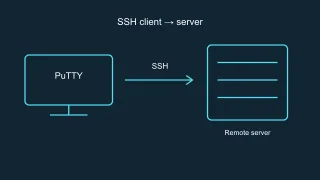
PuTTY
PuTTY: official SSH client downloads, host key checks, saved sessions and how to choose between PuTTY and OpenSSH.
Review and setup →Related reading
Passkey, TOTP or SMS: protection of the exchange account
Selection of the method of entry and preparation of access recovery.
Read article →
Fake support for the exchange: how to check the request
Checking the access to the installation of programs and the transfer of access.
Read article →About the author

Crypto, fintech and Web3 expert with a background in marketing. Covers digital-asset projects, industry risks and fraud prevention.
Professional websiteDocumentation and images
Official sources, image credits and review methods
- Download RustDesk
- Documentation RustDesk
- Official documentation · rustdesk.com / pricing
- Official documentation · rustdesk.com / install
The review was prepared on the project documentation. The installation and independent testing of the distribution within this material was not carried out. The rights to the interface and the names are reserved for the respective rights holders.